Free AI Photo Editor: How to Pick the One That Fits Your Job
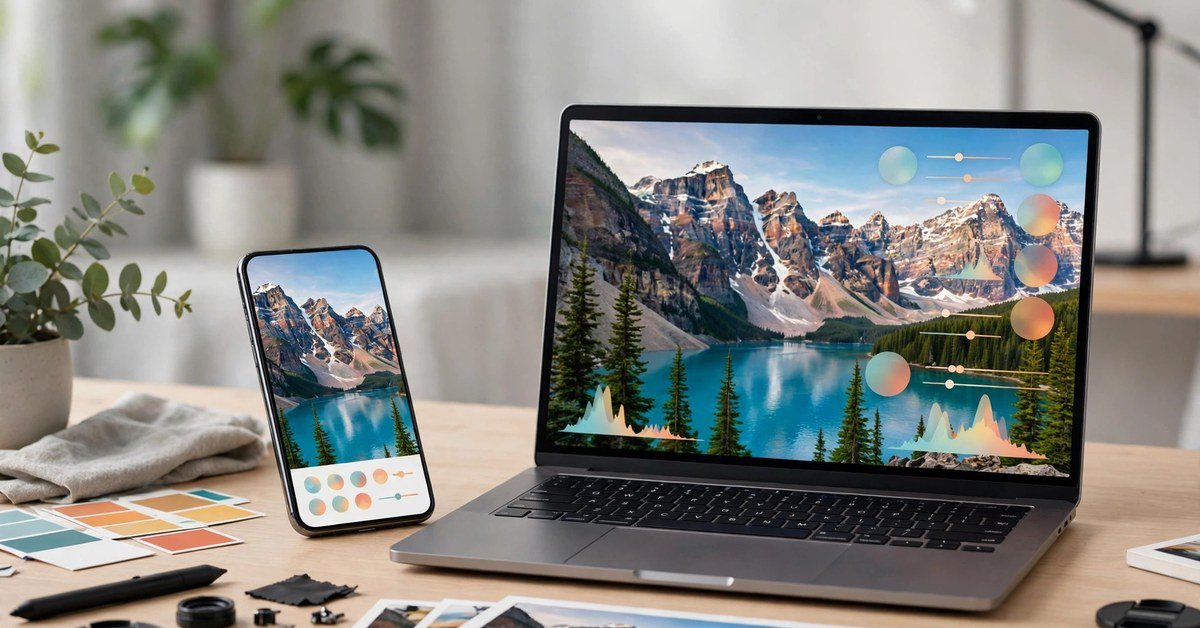
Finding a genuinely free AI photo editor is harder than it looks, because almost every editor calls itself free. Some are free for basic edits and charge for AI features. Some give you a handful of AI credits and then stop. Some let you edit for free but add a watermark, limit the download size, or restrict commercial use. The question is not which editor is best in general. It is which free AI photo editor fits the job you actually have, and where its free plan runs out.
This guide answers that question directly. It explains what “free” usually means, matches common photo jobs to the right kind of editor, and gives you a short test you can run on any tool before you commit your photos to it. No editor here is presented as unlimited, because free AI editing almost never is, and the limits matter more than the feature list.
What Free Really Means in AI Photo Editing
When an AI photo editing tool says it is free, it usually means one of four things, and they are very different. A free plan may include basic editing with a limited number of AI actions per day or month. A free trial may give you full access for a short period and then require payment. A freemium app may be free to install, with AI features sold as credits or a subscription. And some tools are free for personal use only, which matters if you plan to use an edited photo for a shop listing, a client, or an advert.
Before you pick, check four limits that decide whether a free plan is useful for you:
- AI allowance: how many AI edits, generations, or removals you get, and when the allowance resets.
- Download quality: whether the free download is full resolution, reduced size, or watermarked.
- Usage rights: whether free edits can be used commercially, or only for personal projects.
- Account and device limits: whether you need an account, and whether a feature works on web, Android, iOS, or only on one of them.
Start With the Job, Not the App Store Ranking
The fastest way to choose is to name your job in one sentence. “I want to clean up phone photos” and “I want to turn a photo into a painting” are different jobs, and they point to different editors. The table below matches common jobs to the kind of free editor that usually fits best.
| Your job | Start with this kind of editor | Watch out for |
|---|---|---|
| Clean up everyday phone photos | A phone photo app with built-in AI cleanup | Device or account limits on AI saves |
| Remove a background or an object | A browser editor with free background removal | Export limits and commercial-use rules |
| Edit by typing a description | An AI image editor free with prompt support | Credit limits per edit |
| Restore an old or faded photo | A retouch tool built for enhancement | Reduced resolution on free downloads |
| Combine photos or make a stylised version | A creative editor with collage or style tools | Watermarks on stylised exports |
That table is a starting point, not a verdict. The sections below explain each job in more detail, so you can see why a pick fits and when it does not.
For Everyday Phone Photos: Use What You Already Have
If your job is to fix photos already on your phone, the best app to edit photos is often the one already installed. Google Photos, for example, includes AI-powered editing tools such as Magic Eraser for removing distractions and Photo Unblur for sharpening blurry shots, as described on Google’s official photo editing page. Because the app is already on most Android phones and available free on iPhone, it is the fastest path for casual edits, and you do not need to learn a new editor or upload photos to an unfamiliar service.
The trade-off is control. A phone app is built for quick fixes, not for layered, precise work. If you need to move elements around, rebuild a background, or work on a large batch of images, a browser editor will suit you better. Also check availability on your own device, because AI features roll out by device, region, and app version, and two phones with the same app can show different tools.
For Prompt Editing and Object Removal: Browser Editors Win
A growing number of people want to edit a photo by describing the change, which is why searches for an AI image editor free with prompt have risen. In this style, you upload a photo, type something like “remove the person in the background” or “make the sky warmer,” and the tool applies the change. It is excellent for a single clear change. It is less reliable for a long list of changes at once, so break a complex edit into one instruction at a time and check each result before moving on.

For background removal and object removal, a browser editor is usually the most practical free route. You can work on a larger screen, download without installing an app, and compare results more easily. Some browser editors offer background removal free without an account for a single image, while others need a free account and count exports. If you are preparing product photos, read the commercial-use terms carefully: a free plan that forbids commercial use is not free for a shop listing, even if the download itself costs nothing.
Chat-style editing is a related option. A ChatGPT photo editor free route, where you upload a photo into a chat tool and describe the edit, can be handy for quick experiments and for generating variations. Treat the output as a draft, though. Chat editors can change details you did not ask about, such as faces, text, or backgrounds, so compare the result closely with the original before you use it.
For Retouching and Restoration: Judge the Download, Not the Preview
AI photo retouch online free tools promise to sharpen, clean, and enhance portraits and old photos, and AI photo restoration online free tools focus on faded, damaged, or low-quality images. Both can produce impressive previews. The real test is the downloaded file.
When you test a retouch or restoration tool, check three things on the actual download: whether fine detail such as hair and eyes still looks natural, whether skin looks smoothed into a plastic texture, and whether the file is full size or reduced. AI photo retouching that looks good at preview size can fall apart at full size, and a free download capped at a small resolution may be useless for printing or for a large post. For related reading, see our guides on how to upscale an image without losing quality and how to make a blurry picture clear.
Restoration deserves a special warning. An old family photo is often irreplaceable, so never let a tool overwrite your only copy. Keep the original file untouched, work on a copy, and save each version separately. If a restoration invents facial details that were not in the original, that is a guess, not a recovery, and you should decide whether that guess is acceptable for your purpose.
For Creative Jobs: Painting, Line Art, and Combining Photos
Creative conversions are where free editors differ most, because the feature you need may be a side tool in one app and the main feature in another.
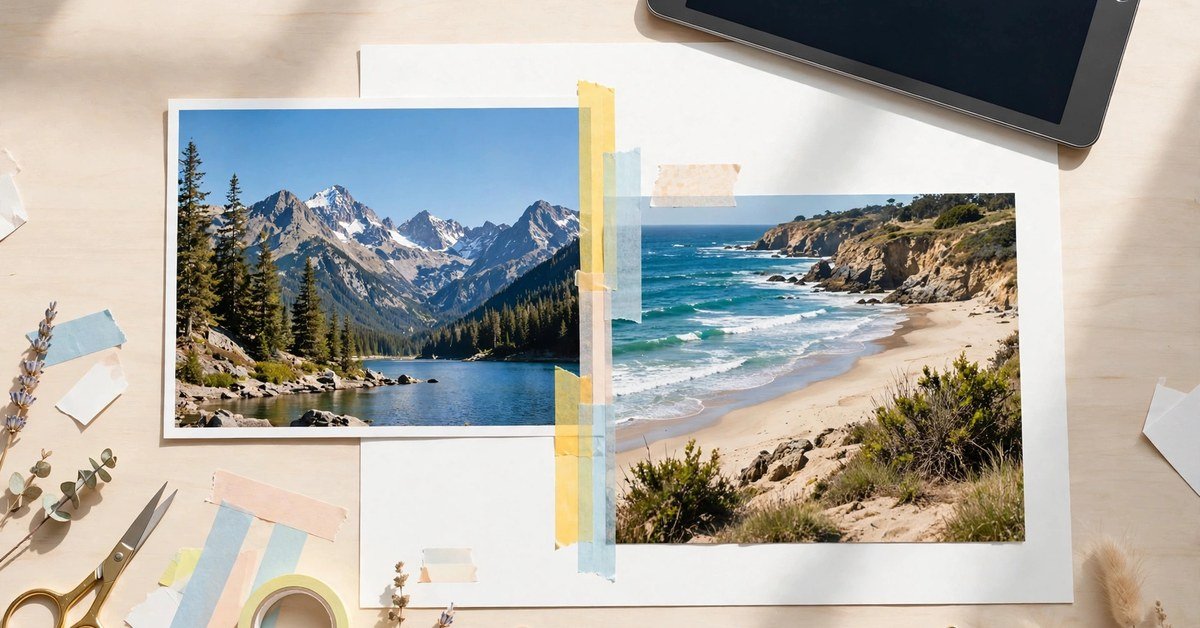
If you want to turn a photo into a painting, look for a style or artistic effect tool rather than a general editor. The result depends heavily on the source photo: clear subjects, good light, and simple backgrounds usually convert better than busy scenes. Try the effect on one photo first, and be ready for the tool to change small details. That is normal for a stylised conversion, but it means a painting-style version should not be used where accuracy matters.
To convert photo to line art, a clean, high-contrast source photo gives a cleaner result than a dark or cluttered one, so crop to the subject before converting if the first result is messy. For the common question “how do I combine 2 photos into one,” most editors offer a collage or blend tool; check the export first, because some tools watermark collages or cap resolution on the free plan.
Adobe Express, Canva, and the All-Rounders: When One App Is Enough
All-round design apps are worth considering when your photo edit is part of a larger job, such as a social post, a flyer, or a listing image. Adobe Express, for example, offers a free plan that Adobe describes as including core photo editing tools, templates, and a limited number of generative AI credits, with no credit card required for the free plan. That combination suits someone who needs a quick edit plus a finished design in the same place.
Canva follows a similar pattern: free editing and design tools, with more advanced AI features on paid plans. If you only need occasional AI edits, a free all-rounder may be all you need. If you need AI edits every day, count your weekly edits before deciding whether a paid plan beats juggling several free allowances.
The best and free photo editing software label is therefore misleading when applied to a single app. The best free choice for a student making social posts, a seller cutting out product photos, and a photographer restoring old prints will be three different tools, because their jobs, their export needs, and their usage rights are different.
A Five-Minute Test Before You Commit
Run this test on any free AI photo editor before you use it for important work:
- Upload a copy of a real photo, not a perfect sample image, and apply the one edit you actually need.
- Download the result and open it at full size. Check detail, colour, and any watermark.
- Try a second edit to see whether you hit a credit or daily limit sooner than expected.
- Read the usage terms for your purpose, especially if the photo is for business use.
- Check whether the original stays untouched, or whether the tool replaces it.
If a tool passes that test for your job, it is a good free pick for you, even if another editor ranks higher in a general list. If it fails on download quality or usage rights, move on, because those two limits cannot be fixed by learning the tool better.
You can also explore the free utilities on this site via the tools page, and Google’s official photo editing page explains its AI editing tools for Google Photos, including Magic Eraser and Photo Unblur.
Answers to Common Free Photo Editor Questions
Is a free AI photo editor really free?
Usually it is free within limits: a number of AI edits, a download size, or personal use only. Always check the allowance, the download quality, and the usage rights before you rely on it.
Which free editor is best for removing backgrounds?
A browser editor with free background removal is usually the fastest choice for a single image. For regular product work, check export limits and commercial-use terms first, because those decide whether the free plan is workable.
Can I use free AI edits for my business?
Only if the tool’s terms allow commercial use on the free plan. Some free plans are personal use only, so a free download is not automatically a business-safe download.
Why does my free edit look worse after downloading?
The preview may be higher quality than the free download, or the free download may be reduced in size. Always judge a tool by the downloaded file at full size, not by the preview on screen.
Do I need to install an app to edit photos with AI?
No. Many AI photo editors work in a browser, which is convenient for a one-off edit. An app is more convenient if you edit phone photos often and want the tools inside your photo library.
Is artificial intelligence to edit photos safe for old family photos?
It can help, but work on a copy and keep the original safe. AI restoration can invent details that were not in the original photo, so check the result carefully before replacing anything.
Pick the Editor That Fits Your Job, Then Test the Download
The right free AI photo editor is the one whose free limits sit above your actual job. Start from the job, not from a ranking. Use a phone app for quick everyday fixes, a browser editor for background removal and prompt edits, a dedicated retouch tool for restoration, and an all-rounder when the edit is part of a finished design. Then run the five-minute test, judge the downloaded file at full size, and check the usage terms for your purpose. That short check saves more time than trying every free editor on the internet, and it leaves you with a tool you can actually keep using instead of one you outgrow after three edits.

- ChatGPT Projects Explained: Organise Your Chats, Files, and Instructions in One Workspace - November 17, 2026
- Best AI Homework Helper: How Students (and Parents) Can Pick One That Teaches, Not Just Answers - November 17, 2026
- AI Image Extender: How to Expand Any Photo Beyond Its Borders - November 8, 2026





Pingback: Best AI Photo Editor Tools: 7 Picks For Easy Editing 2026