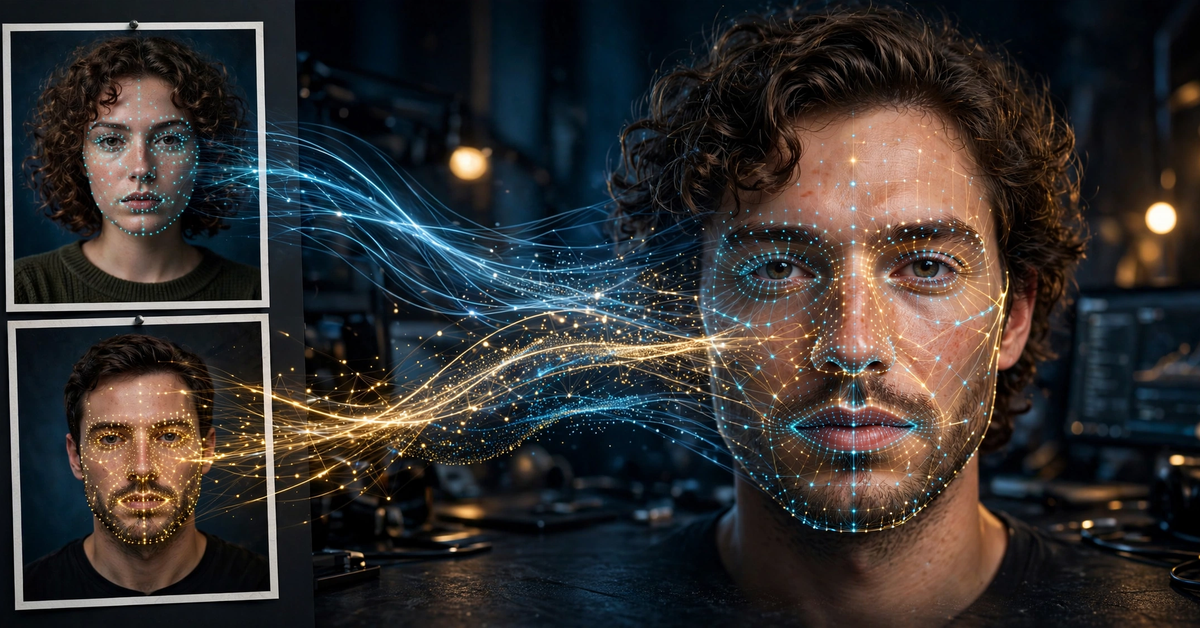
How to Swap Faces in a Photo: AI Tools and Manual Editing Steps
Learning how to swap faces in a photo is easier than most people expect. Modern AI tools handle the whole swap in a few clicks, while manual editors like Photoshop or the free browser editor Photopea give you full control when you want a cleaner result.
How to Swap Faces in a Photo: The Two Routes That Actually Work
Every face-swap method falls into one of two camps: AI tools that detect, align, and blend faces automatically, or manual editing where you select, paste, and blend the face yourself as a layer. Here is how they compare:
| Route | Best for | Skill needed | Typical result |
|---|---|---|---|
| AI one-click tools (Picsart, Canva, Pixlr, Reface) | Memes, social posts, quick fun swaps | None | Fast and decent, but you get what the AI gives you |
| Manual (Photopea, Photoshop) | Realistic composites, group photos, client work | Basic layer skills | More natural when done carefully, and fully under your control |
For fun edits, start with the AI route. For swaps that need to fool the eye, go manual.
Route One: Let AI Do the Heavy Lifting
Most AI face swap tools follow one pattern: upload the scene photo, upload the face photo, and let the tool detect, align, and blend. Most run in a browser or on your phone with nothing to install, which makes trying a face swap picture quick and commitment-free.
Picsart: AI Replace on Web and Mobile
Picsart has no single face-swap button. Its blog walkthrough instead uses the AI Replace tool, which regenerates whatever you brush over:
- Upload your image to the Picsart Web Editor.
- Click the More Apps button in the left sidebar, then open AI Replace.
- Brush over the face you want to change, then choose Replace.
- Type a description of the replacement face, or pick one of the preset options.
- Click Generate Image, preview the result, and use the Export button to save it.
On mobile, the flow is nearly identical and ends in a download. Because AI Replace regenerates the face from a description rather than copying a real face from another photo, it suits playful edits better than placing a specific person’s face onto another picture. Check whether the feature sits behind a paid tier, since plan details change often.
Canva: Face Swap Inside Your Design
Canva’s face swap app works inside the editor and needs an account. The steps are:
- Open the face swap app and choose to start a new design or use an existing one.
- Upload the original image and the face you want to swap in.
- Click Swap Faces and wait for the processing to finish.
- Press Add to Design, since there is no direct download button, then go to Share and Download to save the final design.
One limit to note: as of October 2026, Canva’s own page says the tool grants one free face-swap credit per day, with more on a paid plan. Fine for the occasional swap, less useful if you want to experiment with dozens of images.
Pixlr: AI Face Swap in the Browser
Pixlr’s AI Face Swap: upload a source and a target photo, click the detected faces to exchange, and hit Swap. Runs finish in under ten seconds. Third-party reviews report each attempt costs two AI credits from paid plans or a credit pack, so choose your source photo carefully. As of October 2026, Pixlr documents this as a photo-only workflow.
Reface and Other Mobile Face Swap Apps
For phone-only work, Reface remains one of the most popular face swap apps on iOS and Android: take or upload a clear selfie, pick a template from its library of movie scenes, memes, and GIFs, and the AI maps your features onto it. Templates are fast but limit you to preset scenes rather than your own two photos.
Third-party reviews report that Reface’s free tier shows ads and watermarks some outputs, with a subscription unlocking the full library. If you want to put face in photo combinations of your own choosing rather than preset templates, the Picsart mobile app or a browser tool on your phone will serve you better.
Use front-facing photos with similar lighting, sharpness, and neutral expressions: a face lit from the left will never sit naturally in a scene lit from the right.
Route Two: Swap Faces Manually for Full Control
When precision matters in how to swap a face in another photo, manual editing still wins. The steps below follow the free browser editor Photopea, whose official tutorial documents this exact workflow, but the same method works in Photoshop.
You need two images: the target photo (the scene) and the source photo (the face). For a believable result, pick photos where the faces point the same direction, are lit from the same side, and share roughly the same sharpness.
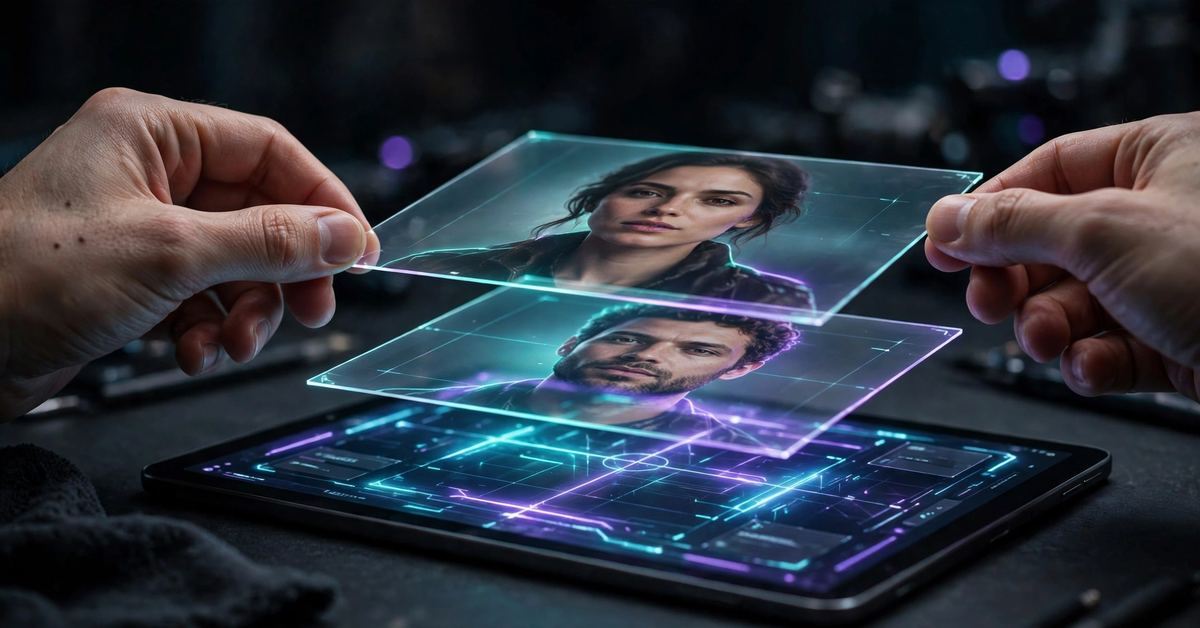
- Select the source face. Open the source photo, choose the lasso tool, and draw a line around the face, staying close to the jawline and hairline. Copy the selection (Ctrl+C or Edit, Copy).
- Paste it into the target photo. Switch to the target image and paste (Ctrl+V). The face arrives as a new layer sitting on top of the original photo.
- Move, resize, and rotate. With the new layer selected, open Free Transform (Edit, Free Transform in both Photopea and Photoshop). Drag the face into position, scale from the corners (hold Shift to keep proportions), and rotate slightly until the eyes and mouth line up. Press Enter to confirm.
- Blend it in. This step separates a good swap from an obvious one. In Photopea, select all layers in the Layers panel and choose Edit, Auto-Blend, which adapts the pasted face’s tone to the bottom layer so the seam disappears. In Photoshop, there is no one-click equivalent: use a soft-edged layer mask around the edges plus an adjustment layer to match skin tone and brightness.
- Export. Save as JPG or PNG, and keep the layered file in case you want to refine the blend later.
This same cut, paste, transform, and blend method is how to replace a face in a photo inside a single group shot: copy each face in turn, paste it onto its new spot, and repeat the blend step for every layer. Manual swaps take ten to twenty minutes the first time and far less once you know the routine.
Consent, Privacy, and the Lines You Should Not Cross
Face swapping is a consent technology, and these rules matter more than any editing tip:
- Use photos you own or have permission to edit. Your own selfies, photos of friends and family who agreed, or licensed stock images are fine. A stranger’s photo, a public figure’s portrait, or a screenshot pulled from the internet is not your material to alter.
- Never use swaps to impersonate or deceive. Putting someone’s face into a scene to mislead viewers, create fake endorsements, or harass is harmful and can be illegal. Many regions treat deceptive deepfakes as fraud or defamation.
- Label edited results when you share them. A simple “edited with AI” note keeps the swap honest, especially for anything that looks like a real photo of a real event.
- Read the tool’s data policy before uploading. Browser and cloud-based tools upload your photos to their servers, and each service has its own retention policy. Check the current privacy policy of whichever tool you use, since these terms change often.
- Expect imperfection, not accuracy. No consumer tool guarantees an accurate likeness. Results vary with photo quality, angles, and lighting, and AI swaps can distort glasses, teeth, ears, and hairstyles. Treat every output as an approximation.
Face Swap Questions Worth Knowing Before You Start
Is face swapping legal?
The technology itself is legal in most places, but specific uses may not be. Consensual fun and personal projects are generally fine; impersonation, deception, defamation, or non-consensual imagery can break privacy, publicity, or fraud laws that vary by country.
Why does my face swap look fake?
Almost always for one of four reasons: the faces point different directions, the lighting comes from opposite sides, one photo is much sharper than the other, or the expressions are wildly different. Fix the inputs first. If the swap still looks off, the manual route with careful blending will beat a one-click result.
Can I use face swapping to remove a watermark or someone else’s text from a photo?
No. A face swap is not a watermark remover, and stripping someone’s watermark or copyright notice to reuse their image is copyright evasion. Only remove text or captions from photos you own, and leave other people’s marks alone.
What is the easiest way to do this on a phone?
For fun and fast on mobile, a template app like Reface is the easiest answer to how to swap faces in a photo. To combine two of your own photos, use Picsart’s AI Replace or Pixlr’s browser tool on your phone instead.
Pick the Route That Fits Your Photo and Your Patience
For a quick answer to how to swap faces in a photo, start with an AI tool: Canva for a one-off swap, Picsart for described edits, Pixlr for two-photo exchanges, or Reface for template fun. If the swap needs to look genuinely real, or you are working with a group photo where every face matters, take the manual route in Photopea or Photoshop and spend the extra minutes on alignment and blending. Either way, get consent, label your edits, and keep it friendly. For more portrait editing picks, see our best AI photo editor guide.

- ChatGPT Advanced Voice Mode in 2026: Live vs Advanced, Voice Changes, and Mic Fixes - October 27, 2026
- ChatGPT Agent Mode Explained: What It Does, How to Use It, and How to Stay Safe - October 27, 2026
- ChatGPT Scheduled Tasks: Setup, Plan Limits, and Daily Routine Ideas - October 26, 2026