

ChatGPT Scheduled Tasks: Setup, Plan Limits, and Daily Routine Ideas
Most people open ChatGPT, ask a question, get an answer, and close the tab. A scheduled task turns that habit around. You write the instruction once, choose when it should run, and ChatGPT comes back to you with the result instead of waiting for your next prompt.
Settle the naming question first. As of October 2026, OpenAI’s help documentation calls this feature scheduled tasks, and you manage it from the Scheduled page in ChatGPT. The word automations appears elsewhere in OpenAI’s products, but it is not a replacement name for scheduled tasks. Codex automations run in Codex, a separate coding product, and event-triggered tasks in ChatGPT Work respond to app activity rather than to a clock. This article covers scheduled tasks: time based tasks, recurring work, and monitoring jobs inside ChatGPT.
What a ChatGPT Scheduled Task Actually Does
A ChatGPT task is a saved instruction with a schedule attached. When the time arrives, ChatGPT runs that instruction and sends you the result as a notification. You do not need to be at your computer when it runs, and you do not need to retype the prompt.
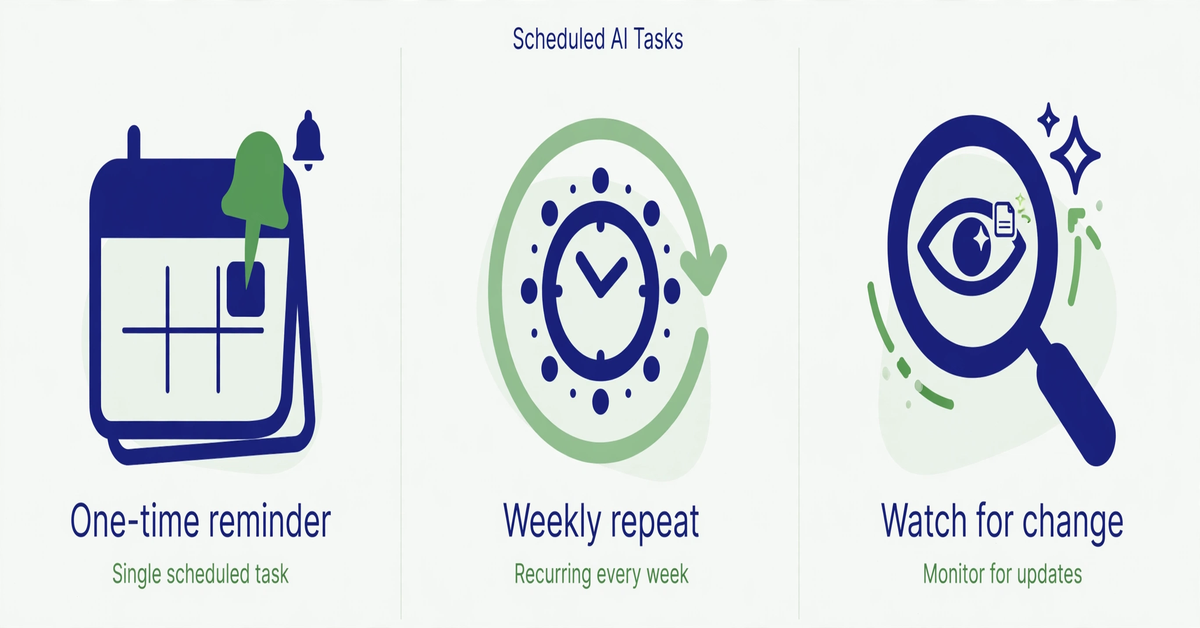
OpenAI describes three useful shapes for a task. A one-time task runs once, which suits a single reminder or deadline check. A recurring task repeats on a pattern you choose, such as every weekday morning. A monitoring task checks for a change and notifies you only when something relevant happens, then it can stop when the end condition you set is met. That third shape is the one people underestimate: a quiet watcher that stays silent until there is news worth reading.
For example, a recurring task might say: every weekday at 8 a.m., give me the three most important headlines in artificial intelligence, each with a source link. A monitoring task might say: watch for a price change on this product and tell me only when it drops below the amount I set. The first arrives on schedule. The second stays quiet until its condition is true, which keeps your notifications useful instead of noisy.
How to Set Up a ChatGPT Scheduled Task
You can create a task in two ways, and both lead to the same Scheduled page. Ask ChatGPT directly in a chat, in plain language, what you want and when you want it. Or open Scheduled from the sidebar and create the task there. If you cannot find Scheduled on a particular app or version, OpenAI’s help page notes that availability depends on your account, app, and app version, so the web version is the reliable place to check first.
Before you create anything, decide the exact outcome you want. A task that says “keep me updated on AI” will produce a different summary every day, because it gives ChatGPT no standard to follow. A task that says “every weekday at 8 a.m., list three AI headlines with one sentence each and a source link for each” gives ChatGPT a repeatable format.
- Open ChatGPT and go to Scheduled, or ask ChatGPT directly to schedule the work.
- Write the instruction as a complete prompt: what to do, how long the result should be, and what format to use.
- Set the timing: one-time, recurring, or a monitoring condition with an end point.
- Read the confirmation carefully, and check the time zone shown for the task.
- Turn notifications on in Settings, then Notifications, choosing push, email, or both.
- After the first run, read the result as a test and edit the task if the length, tone, or sources are wrong.
Notification permission is the step most people skip, and it decides whether the feature feels useful. On the web, your browser may ask for permission separately from ChatGPT’s own setting. On mobile, create the task in a supported ChatGPT mobile app and grant push permission when prompted. A task that runs perfectly but never notifies you is, for practical purposes, a task that never ran.
Plan Limits, Timing, and the Multitasking Question
How many tasks can you multitask in ChatGPT? It depends on your plan, and the limit counts active tasks, not tasks running at the exact same second. OpenAI’s help page lists 3 for Free and Go, 5 for Plus, 10 for Business and Edu, and 15 for Pro and Enterprise. If you reach your limit, pause or delete an active task, or wait for a one-time task to finish, before creating another.
Timing limits matter just as much. Free users can schedule a one-time task or a recurring task no more than once per day, using flexible windows such as morning, afternoon, or night. Hourly schedules and exact delivery times require an eligible paid plan, which supports recurring tasks up to once per hour. Scheduled tasks are built for daily briefings, weekly reviews, and periodic checks, not for minute by minute monitoring.
| Plan | Active tasks | Timing |
|---|---|---|
| Free and Go | 3 | Once per day at most, flexible time windows |
| Plus | 5 | Up to once per hour, exact delivery times |
| Business and Edu | 10 | Up to once per hour, exact delivery times |
| Pro and Enterprise | 15 | Up to once per hour, exact delivery times |
Behind the word automation in recent OpenAI pages sits a separate category. Event-triggered tasks run in ChatGPT Work and respond to supported Gmail, Slack, or GitHub activity. They are available to eligible Plus, Pro, Business, Enterprise, and Edu users, not to Free or Go accounts, and they can run up to 30 times per hour and 720 times per day across all of your event-triggered tasks. If your goal is a daily reminder or briefing, you do not need this category.
A few hard limits apply to scheduled tasks generally. They do not support voice chats, GPTs, or locked chats. A task created inside a project cannot access files uploaded to that project. Deleting the chat linked to a task pauses the task, while deleting the task does not delete the chat. Actions that send a message or change external data may require your approval, in which case the task pauses until you review it.
Putting Scheduled Tasks to Work in a Daily Routine
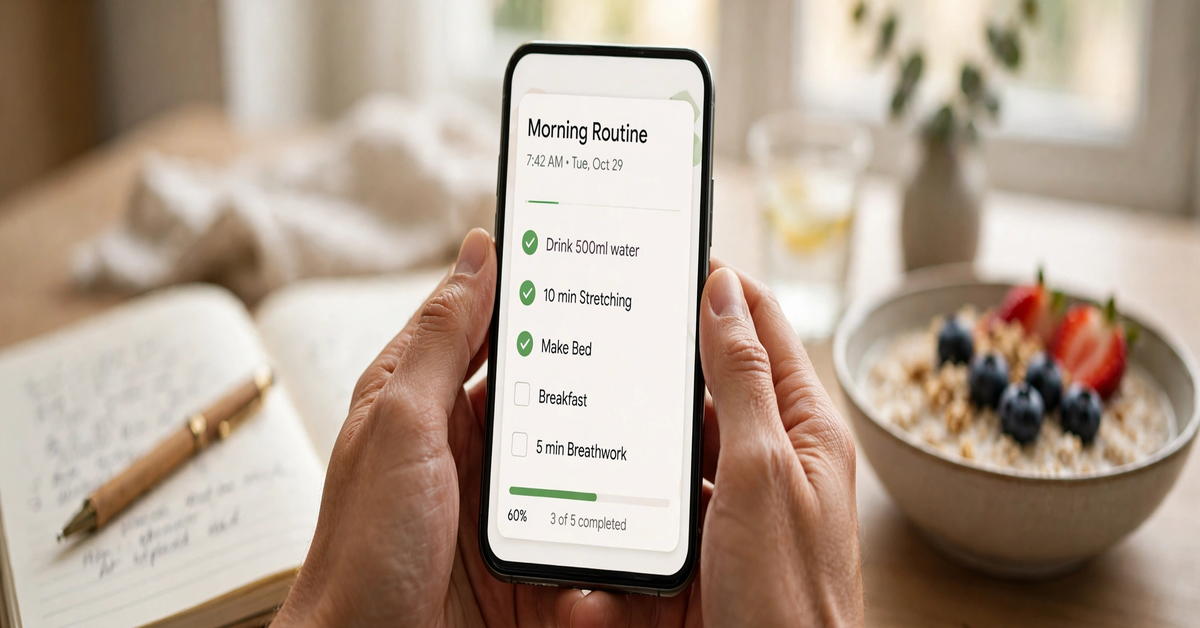
The best first task is boring on purpose. Choose something you already do every day, something with a clear output, and something you will actually read. Taking help from ChatGPT to build a daily routine works best when the task carries the routine, not just a reminder of it. A weekday task could deliver a short plan: the top three priorities you set the night before, a 20 minute study block, and a single habit to track. An evening task could ask what got done, then turn that reply into tomorrow’s starting list.
- Morning briefing: three headlines in your field, one sentence each, with source links.
- Study rhythm: a daily practice question on a topic you are learning.
- Weekly review: every Friday afternoon, a checklist that turns your week’s notes into next week’s three priorities.
- Deadline watcher: a monitoring task that alerts you only when a date, price, or status you named actually changes.
Data cleaning is a good test of where scheduled tasks help and where they do not. A recurring task can run a cleanup checklist over data you paste in, for example checking for duplicate rows, blank fields, or inconsistent date formats, and explaining what it changed. What it cannot do on its own is reach into a private spreadsheet and clean it silently in the background, unless the data is supplied in the task or available through a supported connected app with the right permissions. Treat any task that touches your data as a draft to check, not a finished job. Never put passwords, account numbers, health details, or financial details into a task title or instruction.
A good scheduled prompt has four parts. Name the job in the first sentence, so the task is easy to find later. Define the output format: length and whether links are required. Set the quality rule: what counts as important and what should trigger a monitoring alert. Set the end point: run once, run weekly, or stop when a condition is met. A weak prompt says: tell me about AI news every morning. A stronger prompt says: every weekday at 8 a.m., list the three most important AI industry stories from the last 24 hours, one sentence each, with a source link for each, and skip product announcements unless they change pricing or availability. Repetition rewards specificity.
For readers who want to compare ChatGPT with other assistants before committing to a plan, our ChatGPT alternatives guide groups the options by the job you actually do. And if you want a quick way to check a task prompt before you save it, the free tools on Techlspro include a word counter and a token counter.
Scheduled Tasks, Answered Before You Set Your First One
Are ChatGPT scheduled tasks the same as ChatGPT automations?
Not exactly. Scheduled tasks are time based tasks inside ChatGPT, managed from the Scheduled page. Event-triggered tasks in ChatGPT Work respond to app activity, and Codex automations run in Codex. OpenAI’s help documentation treats them as different features with different limits.
How many tasks can I have active at once?
It depends on your plan: 3 for Free and Go, 5 for Plus, 10 for Business and Edu, and 15 for Pro and Enterprise, according to OpenAI’s help page. Free users are also limited to once per day scheduling with flexible time windows.
Can a scheduled task run inside a custom GPT or a voice chat?
No. OpenAI lists voice chats, GPTs, and locked chats as unsupported for scheduled tasks. Use a scheduled task only for the parts of a workflow that work as a plain saved prompt.
What happens if I delete the chat linked to a task?
Deleting the chat pauses the task but does not delete it, and deleting the task does not delete the chat. If you want a task gone for good, delete it from Scheduled, and delete any shared task link separately if you shared it.
Can I share a scheduled task with someone else?
Yes, for eligible tasks. From Scheduled, you can share a task so another person can review its instructions and create a separate copy in their own account. The link includes the title, instructions, schedule, and original time zone, but not your chat history, previous results, memories, or connected app credentials.
Start With One Task You Will Actually Read
Do not begin with ten tasks. Begin with one: a single daily or weekly task with a clear output, a clear time, and a reader, which is you. Run it for a week, edit it after the first result, and judge it by a simple test. Did you open it, use it, and want the next one? If yes, add a second task. If no, pause it and ask what was wrong: the timing, the format, or the job itself.
When that first task works, the pattern scales naturally. A morning briefing becomes a weekly review. A reminder becomes a monitoring job that stays quiet until something changes. That is the real promise of ChatGPT scheduled tasks in October 2026: not a louder assistant, but a quieter one that shows up on time, with the right work, and only when it has something worth saying. For the official limits and setup steps, check OpenAI’s scheduled tasks help page before you rely on a task for anything time critical.

- ChatGPT Advanced Voice Mode in 2026: Live vs Advanced, Voice Changes, and Mic Fixes - October 27, 2026
- ChatGPT Agent Mode Explained: What It Does, How to Use It, and How to Stay Safe - October 27, 2026
- ChatGPT Scheduled Tasks: Setup, Plan Limits, and Daily Routine Ideas - October 26, 2026