How to AI Edit Photos on iPhone: The Complete 2026 Guide
How to AI edit photos on iPhone has become one of the most searched photography skills of 2026 and for good reason. Apple’s camera hardware has reached a level where the gap between smartphone and DSLR photography is largely closed at the capture stage. The remaining frontier is post-processing, and AI-powered editing tools are making sophisticated image enhancement accessible to anyone, regardless of technical skill. Whether you want to remove distracting backgrounds, enhance lighting in seconds, or transform an ordinary photo into something that looks professionally retouched, this guide covers exactly how to AI edit photos on iPhone with precision and efficiency.
What AI Photo Editing Actually Does on iPhone
Before diving into specific tools and techniques, it helps to understand what happens when you AI edit photos on iPhone. Traditional photo editing requires manual adjustments — sliding exposure controls, painting masks, cloning out imperfections by hand. AI editing replaces many of these manual steps with automated analysis. The AI examines your image, identifies subjects, skies, skin tones, shadows, and problem areas, then applies targeted corrections that would take a human editor considerably longer to execute.
Apple’s own Photos app has integrated on-device machine learning that powers features like Smart Enhance, Clean Up, and Visual Intelligence. Third-party apps go further — offering generative fill, sky replacement, AI portrait retouching, and object removal with a level of sophistication that rivals desktop software.
Using Apple’s Built-In Tools to AI Edit Photos on iPhone
The easiest way to start is with what’s already on your device. Apple’s Photos app in iOS 18 includes several AI-powered editing features that require no additional downloads:
- Clean Up tool: Tap Edit, select Clean Up from the bottom toolbar, and paint over any unwanted object. The AI reconstructs the background seamlessly using content-aware fill technology.
- Smart Enhance: A single tap analyzes your photo holistically and applies optimized adjustments to exposure, contrast, color balance, and sharpness simultaneously.
- Portrait mode post-processing: Even photos not taken in Portrait mode can have depth effects applied retroactively using the AI subject-detection layer built into the Photos engine.
- Visual Look Up: Identifies scenes, plants, animals, food, and landmarks in your photos — useful context when deciding how to edit for specific output styles.
These native features handle the majority of everyday editing needs without requiring any third-party app — making them the ideal starting point when you begin to AI edit photos on iPhone.
How to AI Edit Photos on iPhone Using Lightroom Mobile
Adobe Lightroom Mobile remains the gold standard for photographers who want professional-grade AI editing on iPhone. Its AI-powered features in the 2026 version include:
AI Masking automatically selects subjects, skies, backgrounds, and even specific objects like clothing or hair with a single tap. Once masked, you can apply targeted color grading, exposure changes, or texture adjustments to isolated elements without affecting the rest of the image — a technique that used to require hours in Photoshop.
Denoise AI analyzes grain and noise patterns in low-light photos and removes them while preserving fine detail. This is particularly powerful when you AI edit photos on iPhone taken in dimly lit environments where noise is unavoidable.
Lens Blur applies AI-generated depth-of-field simulation to any image, creating a cinematic background blur even on photos captured with the standard wide lens. According to Adobe’s official Lightroom documentation, the Lens Blur feature uses depth mapping and subject isolation to produce results indistinguishable from optical bokeh on compatible iPhone models.
Third-Party Apps That Elevate How You AI Edit Photos on iPhone
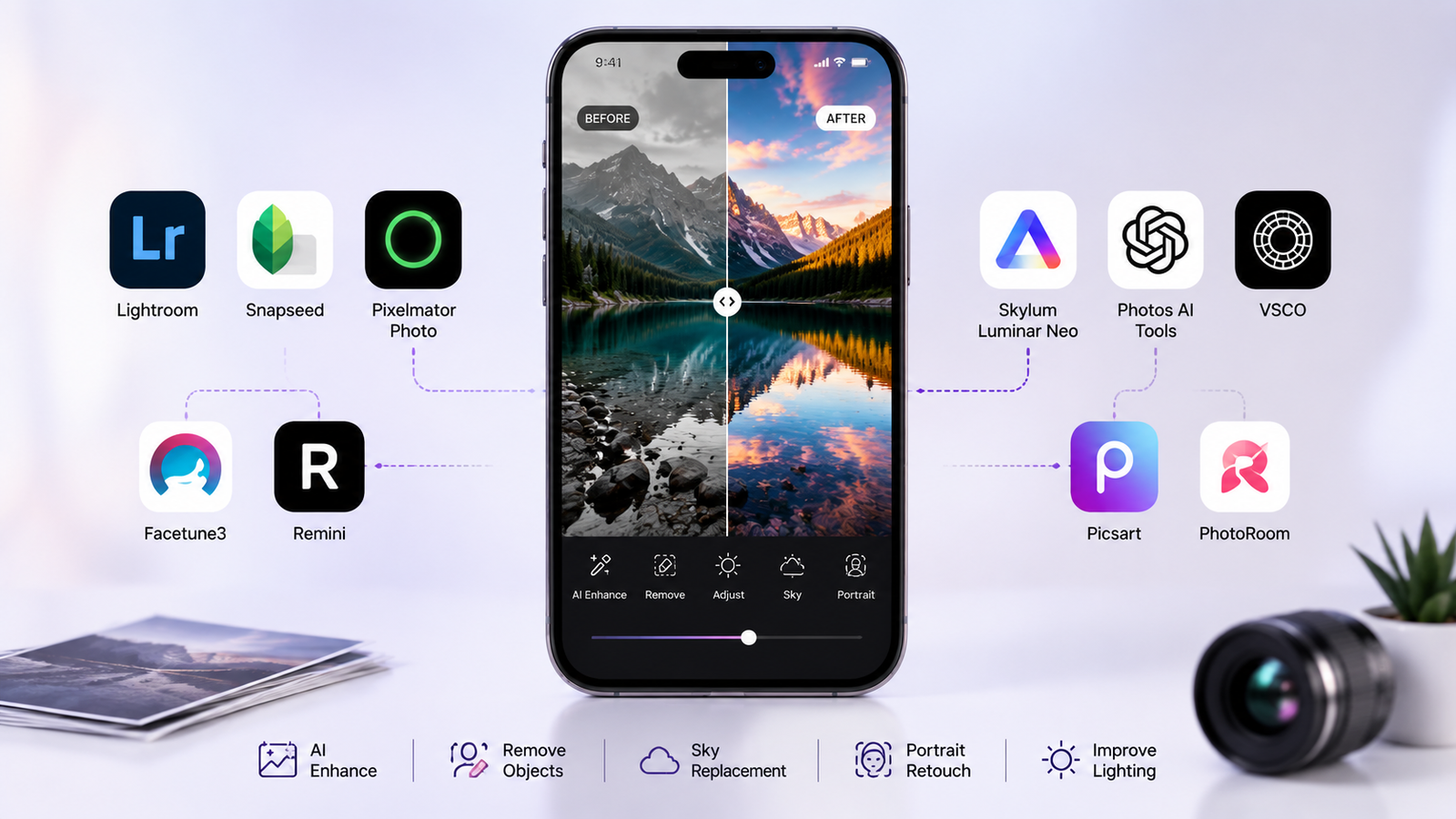
Beyond Lightroom, several specialized applications have emerged as must-haves for iPhone photographers who want to AI edit photos on iPhone with specific outcomes:
- Snapseed: Google’s free editing app includes an AI-powered Healing tool and Portrait feature with automatic face detection and skin retouching
- Facetune3: Specifically designed for portrait editing with AI-driven skin smoothing, eye enhancement, and background replacement
- Pixelmator Photo: Offers ML Super Resolution for upscaling images, AI background removal, and a one-tap enhance engine optimized for Apple Silicon
- Remini: Specializes in restoring and enhancing low-resolution or blurry photos using generative AI reconstruction
- VSCO: Combines film-inspired presets with AI skin tone correction and lighting adjustment for a consistently editorial aesthetic
Choosing the right app depends on your primary use case. Portrait photographers will gravitate toward Facetune or Remini. Landscape and travel photographers typically find Lightroom or Pixelmator Photo more suitable when they AI edit photos on iPhone for professional output.
AI Background Removal and Replacement on iPhone
One of the most commonly needed edits — and one of the clearest demonstrations of how to AI edit photos on iPhone effectively — is background removal. Apple’s Photos app can lift subjects from backgrounds with a long press, creating instant cutouts for use in messages, documents, or creative composites.
For more precise control, apps like Background Eraser Pro and Remove.bg’s iPhone interface offer edge refinement tools that handle complex subjects like hair and transparent objects. Once the background is removed, you can replace it with a solid color, gradient, custom scene, or AI-generated environment — a workflow that has largely replaced studio backdrop photography for product and portrait content creators.
AI Sky Replacement and Scene Enhancement
Flat, overcast skies are one of the most common challenges in outdoor iPhone photography. AI sky replacement tools analyze the horizon line, lighting direction, and color temperature of your scene, then seamlessly integrate a new sky that matches the ambient light. This is one of the most visually dramatic techniques you can apply when you ai edit photos on iPhone for social media or portfolio use.
Luminar Neo on iPhone offers one of the most sophisticated sky replacement engines available, with AI-driven relighting that adjusts the foreground to match the tone and color of the new sky automatically — something manual compositing would require significant expertise to replicate.
Workflow Tips for Efficient AI Editing on iPhone
Understanding how to AI edit photos on iPhone is one thing — building a fast, repeatable workflow is another. Professional mobile photographers use these strategies to maximize efficiency:
- Shoot in ProRAW format (iPhone 12 Pro and later) to preserve maximum data for AI algorithms to work with
- Apply AI enhancements before manual adjustments — let the AI establish the baseline, then refine
- Use Shortcuts app automations to batch-export edited photos to specific folders or cloud services
- Save custom preset combinations in Lightroom Mobile for consistent AI-assisted edits across a series of photos
For a broader look at the AI photo apps powering mobile photography in 2026, this curated AI photo apps resource covers the most capable tools across iPhone and Android platforms with detailed comparisons.
How to AI Edit Photos on iPhone for Social Media Optimization
Social media platforms in 2026 favor visually optimized content — and AI editing can help your iPhone photos perform better algorithmically as well as aesthetically. Instagram, TikTok, and Pinterest all use engagement signals to determine content reach, and high-quality, visually compelling images consistently generate higher interaction rates.
When you ai edit photos on iPhone for social use, prioritize these elements: vibrant but natural color grading, clean subject isolation against uncluttered backgrounds, sharpness that holds up on high-density mobile displays, and consistent aesthetic language across your posts. AI tools make all of these achievable in under two minutes per image — a competitive advantage for content creators managing high publishing frequencies.
Research published by Hootsuite’s social media research team consistently shows that images with professional-grade editing quality outperform unedited equivalents by significant margins in reach and saves across major platforms.
Privacy Considerations When You AI Edit Photos on iPhone
A frequently overlooked aspect of how to AI edit photos on iPhone is data privacy. Many AI editing apps process images on remote servers rather than on-device — meaning your photos are uploaded to third-party infrastructure during processing. Apple’s own Photos AI features run entirely on-device using the Neural Engine, which means your images never leave your phone.
For sensitive personal or professional photography, prefer apps that explicitly state on-device processing. Lightroom Mobile, Pixelmator Photo, and Apple’s native tools all handle AI computation locally. Always review an app’s privacy policy before granting camera roll access, particularly for apps offering free AI features supported by data collection. Apple’s privacy features page provides a detailed overview of how on-device machine learning protects user data across the Photos ecosystem.
Expert Takeaway
The ability to ai edit photos on iPhone with professional results has fundamentally shifted what’s possible in mobile photography. What once required a desktop machine, licensed software, and hours of skilled manual work can now be accomplished in minutes from any location. The tools available in 2026 from Apple’s own intelligent editing suite to powerful third-party platforms give iPhone photographers a complete, capable editing ecosystem that supports everything from casual social sharing to professional commercial work. Mastering how to AI edit photos on iPhone isn’t about replacing skill it’s about amplifying it, so every shot you take can reach its full visual potential without unnecessary friction.
Important FAQs
Do I need a newer iPhone to AI edit photos on iPhone effectively?
Most AI editing features work on iPhone 11 and later, with the best performance on iPhone 15 Pro and newer models equipped with the A17 Pro or A18 chip. On-device AI processing for demanding tasks like Denoise or ML Super Resolution benefits significantly from Apple’s latest Neural Engine generations.
Is it free to AI edit photos on iPhone?
Apple’s built-in Photos app AI features are completely free. Snapseed is also free with no subscription. Lightroom Mobile offers a capable free tier with AI masking and basic tools, while advanced features like AI Denoise require an Adobe Creative Cloud subscription starting at around $10 per month.
Can AI editing fix blurry or out-of-focus iPhone photos?
AI sharpening tools can recover some detail from mildly blurry photos, but they cannot correct severe motion blur or extreme out-of-focus issues. Apps like Remini and Topaz Sharpen AI produce the best results for blur recovery particularly on faces but significant blur at capture will always limit what post-processing can achieve.
How do I maintain a consistent editing style when I AI edit photos on iPhone?
Create and save custom presets in Lightroom Mobile that encode your preferred color grading, contrast, and tonal preferences. Apply these presets as a starting point before any AI-specific adjustments. This ensures visual consistency across your content even when AI algorithms make different decisions on individual images.

- How to Add Captions to Short Videos That People Actually Read - October 8, 2026
- 10 Step AI Search Content Optimization Checklist - October 6, 2026
- Competitor Visibility Tracker: How to Monitor Search and AI Visibility - August 22, 2026