Best ChatGPT Plugin to Generate VBA Code: Top Tools Ranked for 2026
The best ChatGPT plugin to generate VBA code can completely change the way you work in Microsoft Excel. If you use Excel regularly, you know how powerful VBA (Visual Basic for Applications) can be. It lets you automate almost anything sorting data, generating reports, sending emails, formatting spreadsheets all with just a few lines of code.
But here is the problem: most people do not know how to write VBA code. It takes time, practice, and patience.
That is where ChatGPT and AI-powered plugins step in. In 2026, you do not need to be a programmer to create working VBA macros. You just need the right plugin.
This guide covers the best ChatGPT plugins to generate VBA code, how they work, what makes each one stand out, and which one fits your needs best.
What Is a ChatGPT Plugin for VBA Code?
A ChatGPT plugin for VBA is a tool or add-in that uses artificial intelligence powered by OpenAI’s ChatGPT or similar models to automatically write VBA scripts for you.
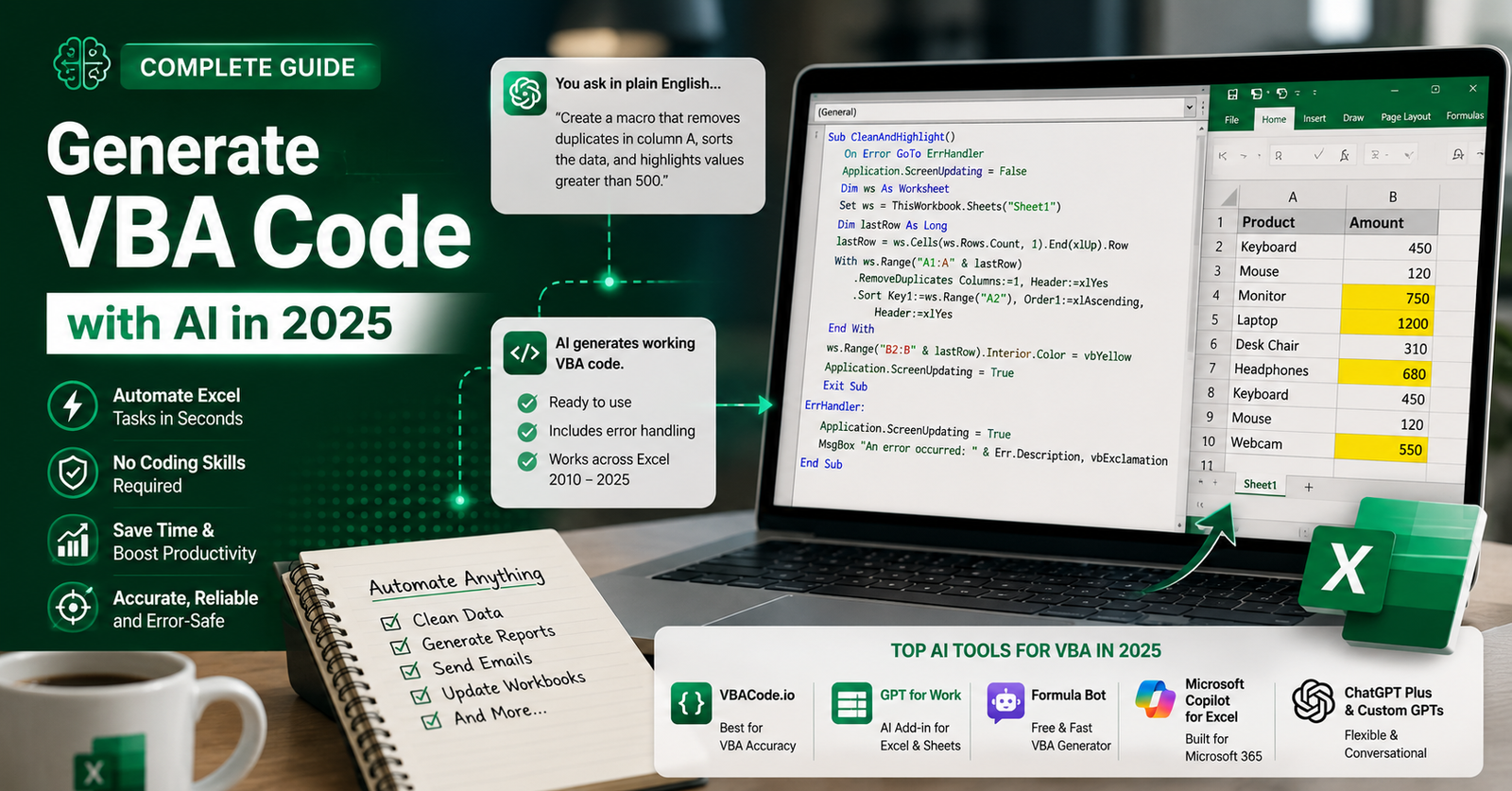
Instead of typing complex code manually, you simply describe what you want in plain English. For example:
- Sort column A from A to Z and remove duplicates.
- Generate a monthly sales report from Sheet1 and email it as a PDF.
- Highlight all cells where the value is greater than 500.
The AI reads your request and returns working VBA code in seconds.
These plugins can be browser extensions, Excel add-ins, GPTs inside the ChatGPT Store, or standalone web tools that connect directly to your Excel workflow.
Why Use AI to Generate VBA Code?
Before diving into the tools, here is why using an AI plugin for VBA makes sense in 2026:
- No coding experience needed Describe the task in plain words, get ready-to-use code.
- Save hours of manual work Tasks that used to take hours can be done in minutes.
- Reduce errors AI-generated code often includes error handling that manual coders skip.
- Learn while you automate Many tools explain the code line by line, helping you understand VBA as you go.
- Scale your workflows Automate repetitive tasks across hundreds of sheets without writing a single line of code yourself.
According to a 2026 comparison of six major AI tools tested on real Excel tasks, purpose-built VBA AI tools achieve up to 95% code accuracy, compared to 70–85% for general AI chatbots.
How to Choose the Right ChatGPT VBA Plugin
Not every tool is built the same. When picking your plugin, consider these factors:
- Accuracy Does it generate code that works on the first try?
- Excel version compatibility Does it support Excel 2010 through 2025?
- Error handling Does the generated code include proper error management?
- Ease of use Can a non-developer use it without configuration?
- Pricing Is there a free plan? What do paid plans cost?
- Integration Does it work inside Excel or require switching tabs?
The 5 Best ChatGPT Plugins to Generate VBA Code in 2026
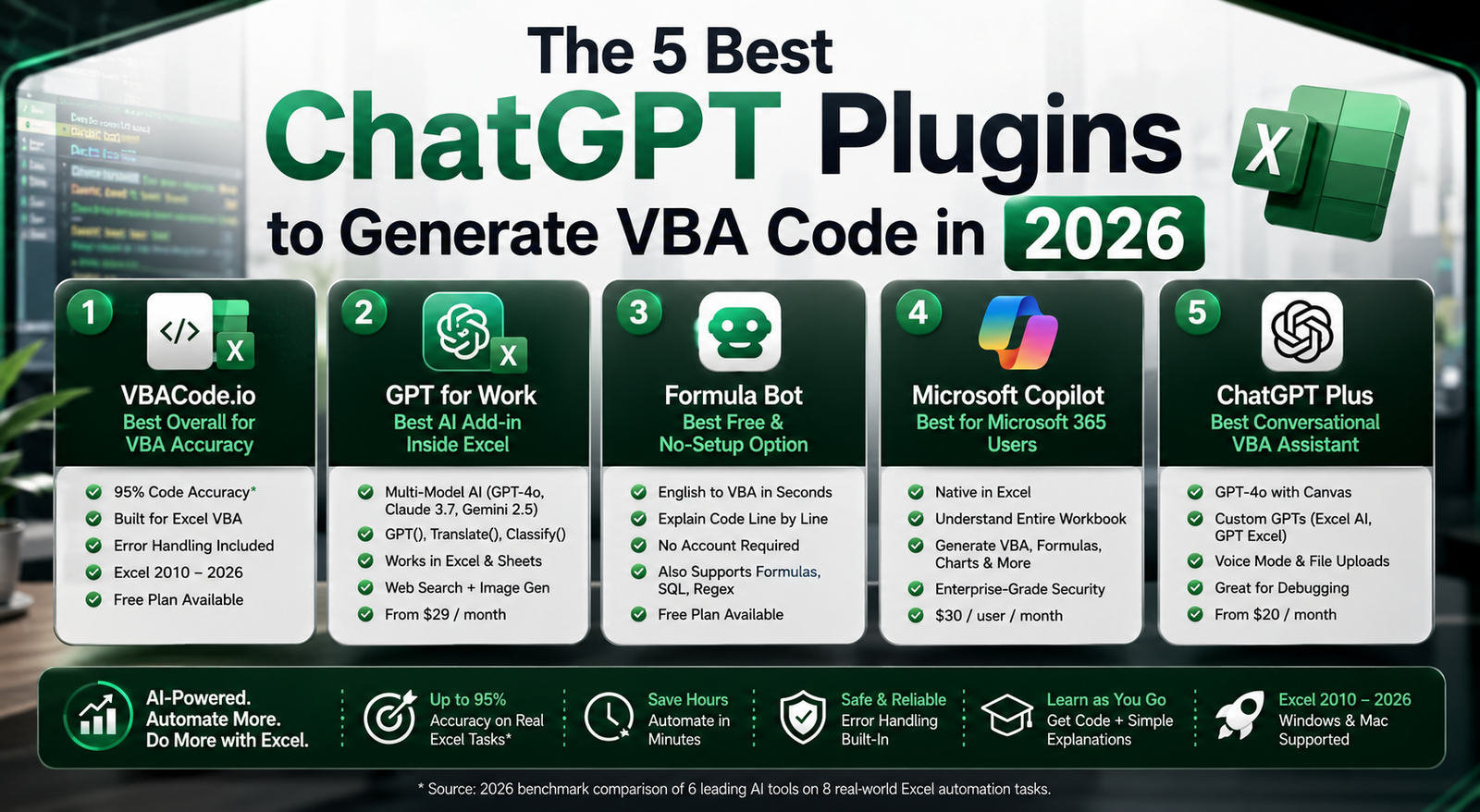
1. GPT for Excel Word (GPT for Work)
Best for: Power users who want multi-model AI inside Excel
GPT for Work is one of the most complete AI add-ins available for Microsoft Excel. It connects directly inside your spreadsheet, removing the need to switch between tabs or apps.
Key features:
- Supports multiple AI models: ChatGPT (GPT-4o), Claude, and Gemini
- Functions include `GPT()`, `GPT_TRANSLATE()`, and `GPT_CLASSIFY()`
- Works across Excel (Windows) and Google Sheets
- Generates VBA code and formulas using natural language
- Can search the web and create images
How it works with VBA: Once installed, you can use VBA to trigger GPT functions across multiple worksheets automatically. For example, you can write a macro that loops through 500 rows and runs a GPT prompt on each cell something that would take hours manually.
Pricing: Free plan available. Paid packs start from $29/month.
Install: Available on Microsoft AppSource (search “GPT for Excel Word”)
Install: Available on Microsoft AppSource (search “GPT for Excel Word”)
2. VBACode.io
Best for: Beginners who want working VBA code with zero setup
VBACode.io is a purpose-built AI tool designed specifically for Excel VBA generation. In a 2026 head-to-head comparison across 8 real-world Excel automation tasks, it scored 145 out of 160 higher than ChatGPT (122), Claude (128), GitHub Copilot (110), and Gemini (104).
Key features:
- Optimized specifically for Excel VBA (not a general AI tool)
- Consistently includes proper error handling (`On Error GoTo`, screen updating restoration)
- Provides step-by-step setup instructions so anyone can run the code
- Compatible with Excel 2010 through 2025, Windows and Mac
- Generates code for complex tasks: user forms, API calls, multi-sheet operations
Why it ranks #1 for VBA: General AI tools like ChatGPT struggle with complex VBA scenarios, achieving 60–70% accuracy on advanced tasks. VBACode.io was built exclusively for VBA and achieves 95% accuracy even on advanced macros.
Pricing: Free tier (5 generations/day). Pro plan available.
3. Formula Bot (AI VBA Code Generator)
Best for: Users who want a free, browser-based VBA generator
Formula Bot offers a dedicated AI VBA Code Generator that converts plain English into working Excel macros instantly. You paste VBA code in and get explanations, or type what you need and get code all inside a clean, simple interface.
Key features:
- Convert plain English to VBA code in seconds
- Paste existing VBA to get it explained line by line
- Generate ready-to-use macros without an account
- Also supports Excel formulas, SQL, and regular expressions
- Free to try with no setup required
Best use case: If you are stuck on an existing macro or need a quick one-off script, Formula Bot is the fastest path to working code.
Pricing: Free plan available. Premium from $9/month.
4. Microsoft Copilot for Excel
Best for: Enterprise users already inside Microsoft 365
Microsoft Copilot is embedded directly in Excel as an AI-powered assistant that understands natural language. It can generate formulas, create VBA macros, summarize data, and automate workflows all without leaving your spreadsheet.
Key features:
- Native integration inside Excel — no add-in required
- Generates VBA code, formulas, charts, and pivot tables from plain language commands
- Suggests functions like `IF`, `VLOOKUP`, and `INDEX/MATCH` automatically
- Supports complex analysis and script-based automation together
- Understands the full context of your spreadsheet
Limitation: Requires a paid Microsoft 365 Copilot license at $30/user/month. It is not available on the free or standard Microsoft 365 plans.
Best for: Teams and businesses that are already invested in the Microsoft 365 ecosystem and want a seamless, fully integrated AI experience.
5. ChatGPT Plus with Custom GPTs (Excel AI & GPT Excel)
Best for: Users who want a flexible, conversational approach to VBA
ChatGPT itself especially with a Plus subscription remains one of the most capable VBA code generators available. OpenAI’s GPT-4o model understands complex VBA requirements and can write, explain, debug, and refactor code in a conversation.
Inside the ChatGPT Store, there are dedicated GPTs built specifically for Excel:
- Excel AI — A specialized GPT optimized for Excel tasks including VBA macro generation
- GPT Excel — Another popular custom GPT for spreadsheet automation
Key features:
- Conversational: you can refine and debug code across multiple messages
- Advanced Voice Mode for hands-free coding assistance
- GPT-4o with Canvas lets you edit code visually in a dedicated workspace
- Custom GPTs in the ChatGPT Store are included with ChatGPT Plus
Pro tip: For VBA specifically, ChatGPT performs best when you include: your Excel version, the sheet name, the exact data layout, and what you want the macro to do step by step. The more specific your prompt, the better the output.
Pricing: ChatGPT Plus at approximately $20/month. Free plan available with limits.
How to Use ChatGPT to Write a VBA Macro (Step by Step)
Even without a specialized plugin, you can use ChatGPT to generate VBA code right now. Here is how:
- Open ChatGPT — Free or Plus account works.
- Describe your task clearly — Include the Excel version, sheet name, data range, and the action you want.
- Copy the generated code — ChatGPT will produce a complete Sub or Function.
- Open Excel and press ALT + F11 — This opens the VBA editor.
- Click Insert → Module — This creates a new module for your code.
- Paste the code — Replace the placeholder names (like `”YourSheetName”`) with your actual values.
- Press ALT + F8 — Opens the Macro dialog. Select your macro name and click Run.
That is it. No programming knowledge required.
Want Even More from ChatGPT? Try the Retrieval Plugin
If you want to take your ChatGPT experience further beyond VBA code generation the ChatGPT Retrieval Plugin lets you connect ChatGPT to your own documents, databases, and data sources. This means ChatGPT can search and retrieve information from your private files before generating code or responses.
Learn more about how it works and how to set it up here: ChatGPT Retrieval Plugin Guide
This is especially useful if you want ChatGPT to generate VBA code that is customized to your actual company data structure or internal file formats.
What the Top Competitor Articles Get Right (And What They Miss)
After analyzing the five top-ranking French articles on this topic, here is what they do well and where there is a gap:
What competitors cover well:
- Step-by-step guides for pasting VBA code into the Excel editor
- Practical examples like cleaning HR data or sorting sales tables
- Beginner-friendly language that avoids jargon
What none of them cover:
- A direct comparison of dedicated VBA AI tools vs. general ChatGPT
- Accuracy scores for each tool on real tasks
- The ChatGPT Store’s specialized Excel GPTs
- The difference between a browser plugin, an Excel add-in, and a custom GPT
That is exactly what this article adds a full, updated tool comparison with real-world performance data.
Final Thought
In 2025, generating VBA code with AI is no longer a futuristic idea it is something any Excel user can do today. Whether you are a finance professional, HR manager, or project coordinator, these tools remove the technical barrier and let you automate your workflow in minutes.
For most users, VBACode.io is the best starting point for pure VBA accuracy. GPT for Work is the best if you want a full AI add-in inside Excel with multi-model support. And ChatGPT Plus with Custom GPTs is the best if you want a flexible, conversational experience you can use for VBA and much more.
Pick the tool that fits your workflow, start with a simple task, and build from there. The time you save in the first week alone will make it worth every minute.
Frequently Asked Questions (FAQs)
Q1: Can ChatGPT generate VBA code for free?
Yes. The free version of ChatGPT (GPT-5 with limited messages) can generate basic VBA macros. For complex tasks and higher accuracy, ChatGPT Plus (~$20/month) or a dedicated tool like VBACode.io is recommended.
Q2: Is AI-generated VBA code safe to use?
Generally yes, but always review the code before running it especially if it accesses files, sends emails, or connects to external systems. The best tools like VBACode.io and Claude include proper error handling to prevent damage.
Q3: Do I need to know VBA to use these tools?
No. For simple automation tasks, you can use these tools without any VBA knowledge. However, understanding VBA basics helps you customize and maintain the code for complex projects.
Q4: What is the difference between a ChatGPT plugin and a custom GPT for VBA?
A plugin (or add-in) installs inside Excel and works directly in your spreadsheet. A custom GPT is a specialized version of ChatGPT in the ChatGPT Store that is fine-tuned for Excel tasks but requires you to copy code between ChatGPT and Excel manually.
Q5: Which tool is best for beginners with no coding experience?
VBACode.io is the top choice for beginners it generates working code with clear setup instructions and includes error handling automatically. Formula Bot is a close second for quick, free, no-account-needed code generation.

- How to Add Captions to Short Videos That People Actually Read - October 8, 2026
- 10 Step AI Search Content Optimization Checklist - October 6, 2026
- Competitor Visibility Tracker: How to Monitor Search and AI Visibility - August 22, 2026