

ChatGPT Agent Mode Explained: What It Does, How to Use It, and How to Stay Safe
Asking what is agent mode in ChatGPT is a reasonable question in October 2026, because the answer now has two names: the older agent mode, also called ChatGPT agent, and the newer ChatGPT Work for longer, multi-step work.
Put simply, what is ChatGPT agent mode? It is ChatGPT going beyond answering a question: browsing websites, working through several steps, using connected apps you approve, and producing a finished result such as a report or spreadsheet, while you watch, interrupt, or redirect it.
The Name to Look for Now: Agent Mode or ChatGPT Work
OpenAI’s help page for ChatGPT agent still describes agent mode and how to start it from the tools menu. At the same time, OpenAI’s help pages describe ChatGPT Work as an agent for longer, multi-step work and finished deliverables, and Work is the experience you switch to from Chat in the current app. Some third party guides say agent mode was folded into Work. The safest reading is that the agent idea is current, while the exact menu label in your account may be Agent or Work depending on plan, app version, and rollout.
Do not get stuck on the label. If you see an Agent option, that is the agent mode in this guide. If you only see a Chat and Work switcher, use Work for the same kind of longer task. If neither appears, your plan or workspace may not include it. When a guide and your app disagree, trust your app.
What Agent Mode Does, in Plain Terms
Regular ChatGPT answers from what you type and what it can look up. An agent adds action: opening pages, following links, comparing information across sites, filling straightforward forms, and assembling the result into a file. It narrates its steps, so you can see which site it visited, rather than receiving only a final answer with no trail.
Connected apps are part of the picture. With your permission, the agent can draw on apps such as email or calendar services, for example checking a calendar before suggesting meeting times. OpenAI warns you to use extra caution here, because connecting an app widens what the agent can see. The agent can also pause for clarification or confirmation, and a task involving money, a message in your name, or a change to a file should stop for your approval.
How to Get Agent Mode in ChatGPT
If you are wondering how to get agent mode in ChatGPT, start with access, not with a clever prompt. OpenAI’s agent help page says agent mode is only available on paid plans, not the free plan. The current app instead offers Work on eligible paid plans, so use a paid plan, update the app, and look for the agent or Work entry point.
Follow these steps in your own app, and stop at the step where your screen differs:
- Open ChatGPT on the web, in the mobile app, or in the desktop app, and sign in to the paid plan that includes agent access.
- Look for the Agent option in the tools menu, or switch from Chat to Work using the switcher at the top of the screen.
- Describe the whole task in one message, including the result you want and anything the agent must not do.
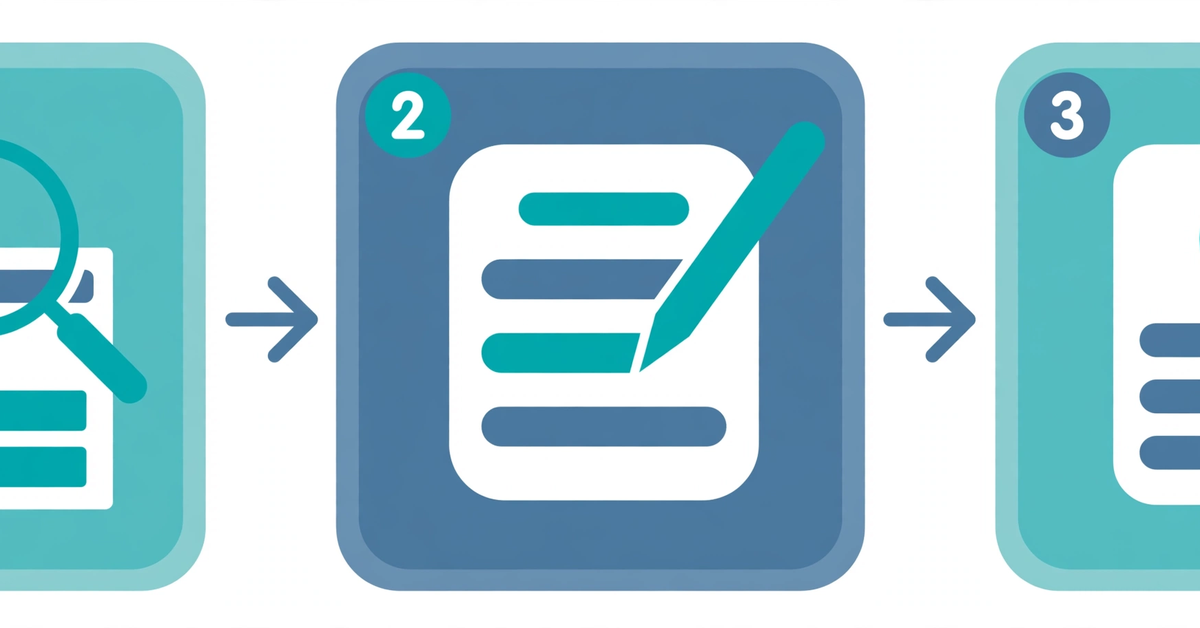
When the agent starts, watch the first few steps before you walk away. If it opens the wrong site or asks for an app you did not intend to connect, stop it and restate the brief. If you see neither option, check your plan, app version, and workspace settings, in that order.
How to Use Agent Mode in ChatGPT Without Wasting a Task
Learning how to use agent mode in ChatGPT is mostly about writing a better brief. A vague request such as “research laptops for me” leaves the agent to guess your budget and the format you want. A strong brief answers five questions first: goal, sources, finished result, limits, and what to do when information is missing.
Here is the shape of a brief that works well, written as an example you can adapt:
- Goal: compare five robot vacuums sold in the United States, priced under 400 dollars.
- Sources: manufacturer pages and major review sites only, no forums.
- Output: one table with price, battery life, mapping, and pet hair performance, plus a source link for each row.
- Limits: do not buy anything, do not sign up for anything, and do not create an account.
- If stuck: write “not listed” instead of guessing a price.

That last line matters: agents fill gaps when you leave them open, and a guessed price is worse than a blank cell. Break large jobs into stages too: ask for research first, review it, and only then ask for the finished document.
What Agent Mode Is Good For, and Where It Struggles
Agent mode earns its keep on repetitive work spread across several pages: researching products, gathering information into one table, drafting a report from your notes, or preparing a first spreadsheet. A scheduled summary is also a good use once the one-off version works.
It struggles where a human would also struggle: sites that block automated visits, pages behind complex logins, ambiguous instructions, and anything where a small error has a large consequence. Treat every result as a draft needing a human check, especially when money, health, legal matters, or a message in your name are involved.
Usage limits are another constraint. OpenAI’s agent help page lists monthly message limits of 40 for Plus, 400 for Pro, and 40 for Business and Enterprise, counting only your initial requests. Work follows a different usage structure, so check the limits for the experience you use before a large task.
Before You Let It Act: The Safety Checklist
Is ChatGPT agent mode safe? It is designed with safeguards, and it still needs your supervision. OpenAI describes confirmations for high impact actions, refusal of disallowed tasks, monitoring for prompt injection, and a watch mode on certain sites. Those safeguards reduce risk; they do not remove it.
Before any task that touches your accounts, money, or other people, check:
- Connect only the apps this task needs, and disconnect apps you no longer use.
- Read every approval prompt in full before you approve it, especially for emails, forms, purchases, deletions, and account changes.
- Never type a password directly into the chat. When a login is needed, take over the browser yourself in the secure view the agent offers, then hand control back.
- Do not let the agent act on vague instructions such as “handle my email.” Name the exact action, recipient, and limit.
- Stay away from untrusted pages for agent tasks: a page can contain hidden instructions designed to trick an agent, a risk OpenAI calls prompt injection. If it does something you did not ask for, stop the task at once.
Two firm rules: never let an agent move money or complete a purchase without you approving the exact amount and recipient, and never give it banking details or identity documents unless the task truly requires it. When in doubt, do that step yourself.
Agent Mode, Regular Chat, and ChatGPT Work at a Glance
The three experiences answer different needs. Regular Chat is fast and conversational, ideal for questions and drafts. Agent mode, where available, is for multi-step work across websites and apps. ChatGPT Work is the current experience for longer work ending in a finished deliverable, such as a document, spreadsheet, presentation, report, or site.
| Experience | Best for | What you get |
|---|---|---|
| Regular Chat | Quick questions and drafts | A conversational answer |
| Agent mode | Multi-step tasks across sites and apps | Actions plus a result, with steps you can watch |
| ChatGPT Work | Longer work with a finished deliverable | Documents, spreadsheets, presentations, reports, or sites |
For readers comparing assistants more broadly, our ChatGPT alternatives guide groups other tools by the job they do best, and our free online tools include writing helpers you can use without signing up.
Agent Mode Questions Readers Keep Asking
What is agent mode on ChatGPT?
It is ChatGPT acting on your behalf across several steps: browsing pages, using approved apps, and producing a finished result, while you watch or redirect it.
What does agent mode do in ChatGPT that regular Chat cannot?
It takes actions on live pages, such as gathering information from several sites into one table or building a document from your notes, and it pauses for approval on important actions.
How do I use ChatGPT agent mode?
On an eligible paid plan, open Agent in the tools menu, or switch to Work, then describe the full task: goal, sources, output format, limits, and what to do when information is missing.
Is ChatGPT agent mode safe?
It has safeguards, including confirmations for high impact actions, but they do not remove all risk. Connect only the apps a task needs, read every approval prompt, never paste passwords into chat, and stop any task that does something you did not ask for.
Why can I not find agent mode in my ChatGPT app?
Your plan may not include it, your app may be out of date, or a workspace administrator may have disabled it. In the current app, look for Work instead of Agent.
Start Small, Then Hand Over Bigger Work
Agent mode, and its current form in ChatGPT Work, is best learned on a small, low risk task: a product comparison, a research summary, or a first draft of a spreadsheet. Write a full brief, watch the first steps, approve nothing you have not read, and check the result against a source you trust. The goal is not to hand everything to the agent. It is to hand over the tedious steps, keep the decisions that matter, and end up with work you can stand behind. For current details, check OpenAI’s ChatGPT agent help page and OpenAI’s ChatGPT Work and Codex help page before you start.

- ChatGPT Advanced Voice Mode in 2026: Live vs Advanced, Voice Changes, and Mic Fixes - October 27, 2026
- ChatGPT Agent Mode Explained: What It Does, How to Use It, and How to Stay Safe - October 27, 2026
- ChatGPT Scheduled Tasks: Setup, Plan Limits, and Daily Routine Ideas - October 26, 2026