How to Remove a Person From a Photo on iPhone: 3 Methods That Work (2026)
A stranger wanders into your perfect beach shot. A tourist photobombs the landmark you waited an hour to photograph. Learning how to remove a person from a photo on iPhone takes less than a minute once you know which tool to reach for, and you already own the best one if your phone is new enough. This guide walks you through the built-in Clean Up tool, the best third-party options for older iPhones, and how to fix it when the result looks wrong.
How to Remove a Person From a Photo on iPhone: Start With Your iOS Version
Everything below depends on two things: which iPhone you own and which iOS version it runs. Apple’s built-in Clean Up tool is part of Apple Intelligence and has hard requirements. According to Apple’s official requirements page, Clean Up needs iOS 18.1 or later on iPhone 15 Pro, iPhone 15 Pro Max, or an iPhone 16 model (or newer). Apple Intelligence is also not available in every region or language, and users in the EU needed iOS 18.4 or later, as of October 2026.
To check, open Settings, tap General, then About, and look at your model name and iOS version. If your iPhone qualifies, Method 1 is free and built right into the Photos app. If it does not, skip ahead to Methods 2 and 3, which work on any iPhone that can run the App Store.
Method 1: The Built-In Clean Up Tool in the Photos App
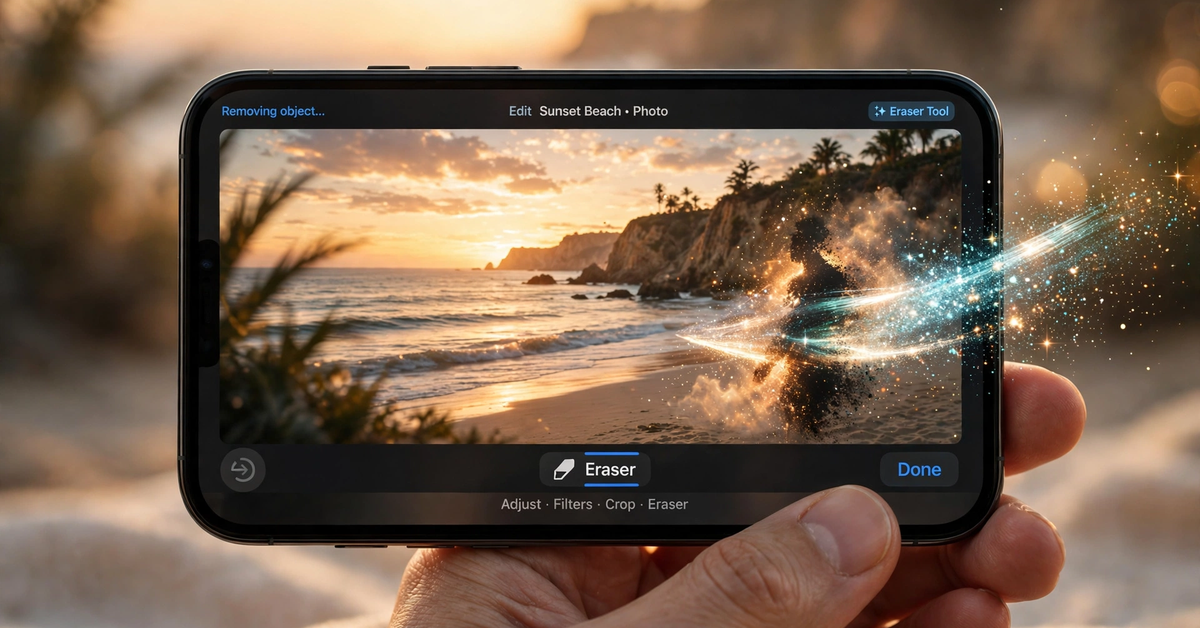
Clean Up is Apple’s answer to the question of how to erase someone from a photo on iPhone. It uses on-device AI to detect the person you select and paint the background back in behind them. Apple’s own support instructions describe the flow, and it matches what you will see on your screen:
- Open the Photos app and tap the photo you want to fix.
- Tap Edit (the sliders icon), then tap Tools and choose Clean Up. On iOS 18, the Clean Up icon sits directly in the edit toolbar at the bottom.
- The first time you open it, your iPhone may need to download the Clean Up model. Give it a moment on Wi-Fi.
- Clean Up may highlight people or objects automatically in a shimmering outline. If the person you want gone is highlighted, tap them.
- If not, use your finger to brush over the person or draw a circle around them. Include their shadow and reflection, or those stay behind.
- Pinch to zoom in and inspect the edges. If the fill looks wrong, tap Undo and try a tighter selection.
- Tap Done to save. If you change your mind later, open the photo, tap Edit, choose Clean Up, and tap Reset to revert to the original.
Newer iOS versions offer processing modes: Auto, Fast, and High Quality. Fast works well for small distractions on plain backgrounds, while High Quality takes longer but handles harder cases, like when you need to remove people from photos on iPhone with several figures in the background. Apple notes usage limits may apply, so if High Quality stops responding, wait a while and try again. For the full official steps, see Apple’s Clean Up support guide.
Method 2: TouchRetouch for iPhones Without Apple Intelligence
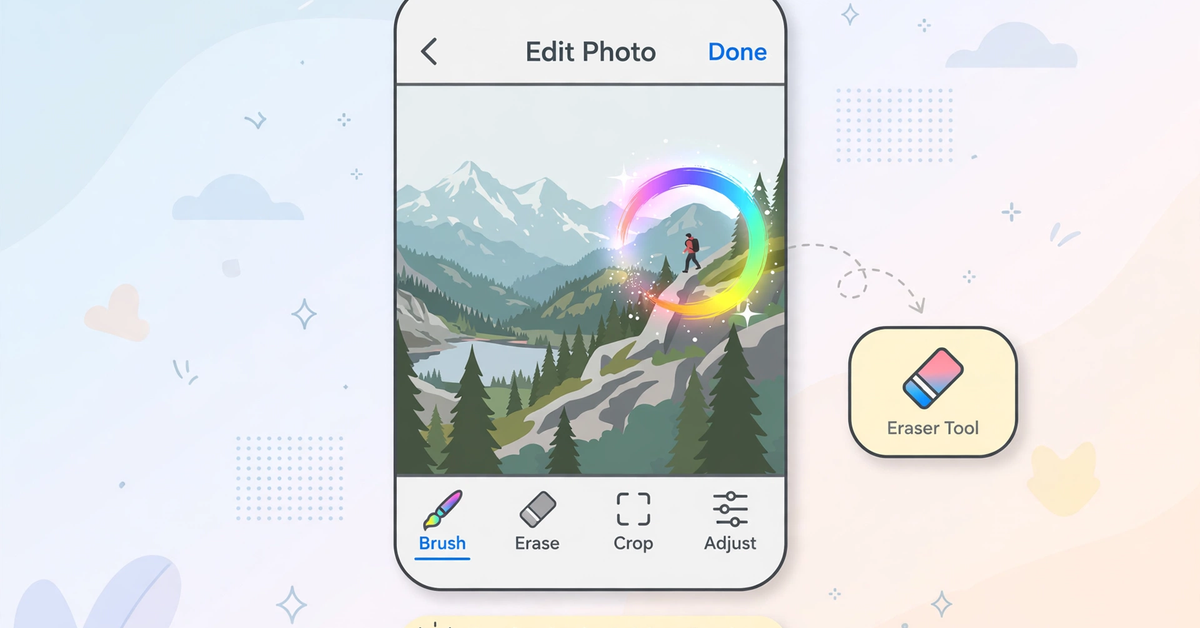
If your iPhone cannot run Clean Up, TouchRetouch by ADVA Soft is the most capable replacement for learning how to remove person from photo on iphone hardware from the older generation. It is aimed squarely at anyone still asking how to remove someone from a picture on iPhone from an iPhone 12, 13, or 14. It works on any iPhone the App Store supports, and according to its official feature page it offers an object removal brush, a lasso tool for irregular shapes, a quick-repair tool, and an eraser for fine corrections, all designed around removing people, objects, lines, and blemishes from photos.

The workflow is straightforward: open the app, select your photo, pick the object removal brush, and paint over the person you want gone. The lasso tool is worth learning for tricky cases, since tracing an irregular outline around a person gives the AI a cleaner boundary than a rough finger smear. The app’s own site advertises a 3-day free trial with premium features unlocked, as of October 2026, which is enough to judge whether it fits your needs before paying anything. See the full feature list on the official TouchRetouch object removal page.
One practical tip: TouchRetouch does its AI processing on its own servers, which is exactly why it works on iPhones that cannot run Apple’s on-device Clean Up. The tradeoff is that you need an internet connection, and uploads leave your device, so use it for ordinary travel photos rather than sensitive images.
Method 3: Snapseed’s Healing Tool for Small, Careful Edits
Google’s Snapseed remains the answer most people land on when they search how to edit someone out of a picture on iPhone for free. Its official listing promises no subscriptions, no ads, and no watermarks, and the Healing tool exists specifically for this job: removing small distractions, blemishes, and the odd background person.
- Open your photo in Snapseed and tap Tools, then choose Healing.
- Pinch to zoom in on the person you want to remove.
- Brush over the person with your finger. Lift your finger and let the tool patch the area.
- Repeat with small, careful strokes. Tapping the checkmark applies the change, and Export saves your finished photo.
Be honest about its limits. Snapseed’s Healing tool clones pixels from the surrounding area rather than generating new ones with AI, so it works best when you want to erase people from pictures on iPhone with simple backgrounds like sky, sand, or grass. On busy backgrounds it tends to leave a smudged patch. For a single distant photobomber it is often perfect; for a large figure in a complex scene, use TouchRetouch instead.
When It Goes Wrong: Quick Troubleshooting
The Clean Up button is missing. Double check your iPhone model and iOS version against the requirements above, then confirm Apple Intelligence is available in your region and enabled. On a qualifying phone with the button still absent, update iOS to the latest version.
The fill looks smeared or fake. Undo and select a smaller area around the person, avoiding busy edges like railings or textured walls. For people near high-detail areas, circle just the body first, then clean up the shadow separately.
The person’s ghost outline remains. That usually means a shadow, reflection, or a semi-transparent edge was left outside your selection. Zoom to 200 percent, brush over the leftover sliver, and check again before tapping Done.
You erased the wrong person. Undo takes you back step by step, and Reset in the Clean Up screen restores the original entirely. Nothing is permanent until you tap Done, and even then you can revert.
One note on honesty: these tools edit the photos you own, your own travel shots and family pictures. Do not use them to alter someone else’s photos or to fabricate evidence of any kind.
iPhone Person Removal: Quick Answers
Can I learn how to remove a person from a photo on iPhone for free?
Yes. Clean Up in the Photos app is free on supported iPhones (iPhone 15 Pro or newer, iOS 18.1+). Snapseed is free on any iPhone. TouchRetouch advertises a 3-day free trial with its premium features, as of October 2026.
How do I get rid of people in photos on iPhone if I have an iPhone 12 or 13?
Use TouchRetouch or Snapseed from the App Store. Neither needs Apple Intelligence, and both run on older models.
How do I erase a person from a photo on iPhone without an app at all?
If you mean how to erase a person from a photo on iPhone with zero downloads, the only real option is Clean Up, which needs a qualifying iPhone. Otherwise, a free web-based eraser in Safari can handle simple cases, but an app gives far better results.
Does Clean Up work on videos too?
No. Clean Up works on photos in the Photos app, including the current frame of a Live Photo you select. It does not edit video footage.
Save the Shot, Keep the Memory
Once you know how to remove a person from a photo on iPhone, a ruined photo becomes a ten-second fix. Start with the free Clean Up tool if your iPhone supports it, fall back to TouchRetouch for harder removals on any model, and keep Snapseed around for quick free touch-ups. To go further with mobile editing beyond removals, our guide on how to AI edit photos on iPhone covers the wider toolbox, and the AI Photo Apps category has more iPhone editing guides.

- ChatGPT Advanced Voice Mode in 2026: Live vs Advanced, Voice Changes, and Mic Fixes - October 27, 2026
- ChatGPT Agent Mode Explained: What It Does, How to Use It, and How to Stay Safe - October 27, 2026
- ChatGPT Scheduled Tasks: Setup, Plan Limits, and Daily Routine Ideas - October 26, 2026