

How to Add Pictures in Instagram Story: Ultimate 2026 iPhone Android Guide
How to add pictures in Instagram story has become the most essential skill for anyone wanting to share moments, promote products, or engage followers on Instagram’s 1-billion-user platform. Instagram Stories allow you to post photos visible for 24 hours, creating authentic, spontaneous content that drives higher engagement than traditional posts. Whether you’re using iPhone or Android in 2026, this complete guide covers every method to add pictures seamlessly with the latest features.
Mastering how to add pictures in Instagram story unlocks Instagram’s 2026 evolution including Meta AI-powered editing, multi-photo layouts, and interactive elements that transform basic uploads into creative content. Instagram now supports up to 6 photos per slide using layout grids, AI restyle tools for photo transformations, and the new “Instants” feature for DM-based disappearing photos. Let’s explore every technique from beginner to advanced.
Instagram Story Photo Features Updated for 2026
Instagram’s 2026 story features have transformed how to add pictures in Instagram story from simple uploading to sophisticated content creation. The platform introduced multi-photo layout grids allowing 2, 3, 4, or 6 images in one story slide, eliminating the need for external collage apps. This grid system lets you showcase product collections, before-after comparisons, or event highlights in a single engaging frame.
Latest Instagram Story photo features in 2026 include:
- Multi-photo layouts supporting 2-6 photos per story slide with customizable grid sizes
- Meta AI Restyle for editing photos through text prompts add, remove, change elements, or transform into cartoons
- Gallery access extending beyond 24 hours to include older photos from your camera roll
- High-resolution uploads maintaining quality up to 1080×1920 pixels for crisp mobile displays
- Interactive elements including polls, quizzes, question stickers, and countdown timers for engagement
- Music integration with 30-second song clips from Instagram’s trending library
- AI-powered effects for AR animations, background blur, and automatic enhancements
- Instants feature for spontaneous disappearing photos shared exclusively in DMs
Understanding these features changes how to add pictures in Instagram story from basic sharing to strategic storytelling. Meta AI Restyle, accessed via the paintbrush icon, lets you type prompts like “turn into cartoon” or “add sunset background” to instantly transform photos without external editing apps.
Method 1: Quick Single Photo Upload (Fastest Method)
The fastest way to learn how to add pictures in Instagram story involves uploading a single photo directly from your device’s gallery. This method takes under 30 seconds, perfect for quick updates, product snapshots, or real-time moments you want to share immediately with followers.
Follow these exact steps for single photo uploads:
- Open Instagram: Tap the Instagram app icon on your iPhone or Android device
- Access Story Camera: Tap the plus (+) icon at top left OR swipe right from home screen
- Select Story Mode: Ensure “Story” is highlighted at the bottom (not Post or Reel)
- Open Gallery: Swipe up on camera screen OR tap gallery thumbnail at bottom left
- Pick Your Photo: Browse camera roll and tap the photo you want to add
- Edit (Optional): Add filters, text, stickers, music, or drawings using top toolbar
- Post: Tap “Your Story” button at bottom left to publish instantly
The how to add pictures in Instagram story single photo method works identically on iPhone and Android with the same interface. Instagram automatically optimizes photos for vertical mobile viewing, ensuring your images look professional without manual resizing. For photos older than 24 hours, swipe up on the story camera to access your full gallery including archived content. To download Instagram stories or photos for offline viewing, use SnapDownloader which supports Instagram content extraction.
Method 2: Multiple Photos Using Layout Grids (Advanced Technique)
Advanced how to add pictures in Instagram story techniques include using layout grids to display multiple photos simultaneously without creating separate slides. This feature creates professional collages instantly, perfect for showcasing product variations, event photo dumps, or comparison content.
Here’s the complete layout grid workflow:
- Open Instagram Story: Tap plus icon or swipe right from home screen
- Navigate to Story: Confirm “Story” is selected at bottom of screen
- Tap Layout Icon: Click the three-layer grid icon on the right-side menu
- Choose Grid Size: Select 2, 3, 4, or 6 frames based on your photo count
- Upload Photos: Tap “Upload” button and select all images for each frame
- Capture New Photos (Optional): Tap individual frames to snap new photos instead of uploading
- Edit Frames Individually: Add text, stickers, or filters to specific frames
- Finalize: Tap “Done” then “Your Story” to publish multi-photo story
The how to add pictures in Instagram story with layout grids creates visually stunning collages in one step. You can mix uploaded photos with newly captured snaps within the same grid for creative flexibility. For detailed multi-photo strategies, explore how to add multiple photos to Instagram story for advanced techniques.
Grid selection depends on content goals:
- 1-frame layouts: Before-after comparisons, product variations
- 3-frame layouts: Step-by-step tutorials, product features
- 4-frame layouts: Detailed showcases, event highlights
- 6-frame layouts: Comprehensive photo dumps, full event coverage
Method 3: Profile-Based Photo Upload (Alternative Path)
Another effective how to add pictures in Instagram story approach uses your profile page as the starting point instead of the story camera. This alternative path works well if you prefer navigating through your profile or managing multiple photos from your content library.
Use this profile-based upload method:
- Go to Profile: Tap your profile icon at bottom right corner
- Tap Plus Icon: Click the plus sign (+) near your display picture
- Choose Story: Select “Story” from the options menu
- Open Camera: Tap camera icon to access story composer
- Access Gallery: Swipe up or tap dialogue box showing device images
- Select Images: Choose desired photos from your gallery
- Customize: Add edits, text overlays, music tracks, or stickers
- Share: Tap “Your Story” then “Done” to publish
This how to add pictures in Instagram story profile method provides identical functionality as the story camera approach but through different navigation. Both paths lead to the same editing tools, filters, and posting options. If you’re experiencing account issues preventing story access, check Instagram password reset emails for recovery solutions.
For professional photo enhancement before uploading, tools like Fotor AI Photo Editor offer advanced editing including background removal, AI object generation, and professional color grading that Instagram’s native tools can’t match. Pre-editing photos in Fotor before how to add pictures in Instagram story ensures polished, branded content.
Method 4: Meta AI Restyle Editing (Latest 2026 Feature)
The revolutionary how to add pictures in Instagram story innovation in 2026 is Meta AI-powered Restyle editing, which transforms photo customization through text prompts. This AI feature eliminates external editing apps by letting you modify photos by typing simple descriptions like “add sunglasses” or “transform to cartoon”.
Access Meta AI Restyle following these steps:
- Select Photo: Choose your image in the Stories composer
- Tap Paintbrush Icon: Click the paintbrush editing tool on the right menu
- Open Restyle Menu: Navigate to “Restyle” from editing options
- Choose Action: Select “Add,” “Remove,” “Change,” or “Transform”
- Type Prompt: Describe desired changes ( “add beach background,” “cartoon version”)
- Review Edits: Preview AI-generated modifications and adjust if needed
- Post to Story: Tap “Your Story” once satisfied with results
The how to add pictures in Instagram story with Meta AI Restyle transforms ordinary photos into creative content automatically. You can transform yourself into a cartoon, add missing elements like accessories, remove unwanted objects from backgrounds, or completely change scenery using AI-generated suggestions based on your text prompts. All edits are free, process instantly, and share directly in Stories or DMs without watermarks.
Essential Instagram Story Editing Tools for Photos
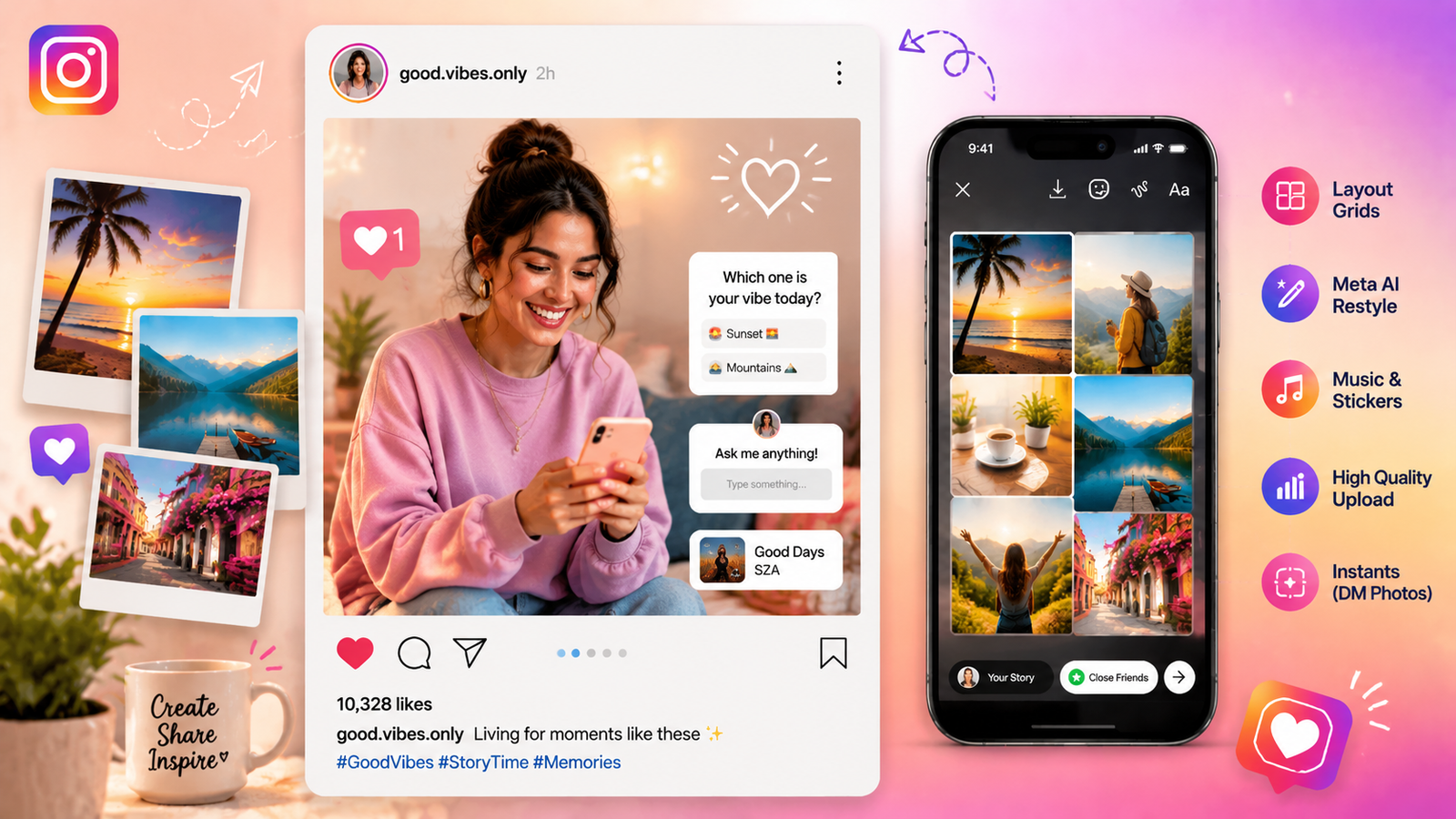
After learning how to add pictures in Instagram story, mastering Instagram’s built-in editing tools enhances content quality significantly. These features transform basic photos into engaging stories that capture attention and drive interaction metrics.
Instagram Story editing tools and their uses:
- 15+ Preset Filters: Apply color adjustments, moods, and aesthetic enhancements instantly
- 20+ Text Fonts: Add customizable overlays with 20 font styles, colors, and animation effects
- Interactive Stickers: Use polls, quizzes, question boxes, emoji sliders, and location tags
- Music Library: Add 30-second trending song clips from Instagram’s official music catalog
- 5 Brush Types: Freehand drawing with solid, gradient, neon, marker, and spotlight brushes
- Color Palettes: Access 30+ pre-set colors plus custom color selection for customization
- Timeline Controls: Set photo duration between 3-15 seconds per story slide
- Background Blur: Apply blur effects to focus viewer attention on foreground photos
- AR Effects Gallery: Access trending animations and augmented reality effects
- Auto-Enhance: Use AI-powered automatic brightness, contrast, and color corrections
For professional photo enhancement before posting, external tools like Adobe Photoshop Express offer advanced editing including background removal, object elimination, and pro-level color grading that Instagram’s native tools can’t match. Combining external edits with how to add pictures in Instagram story native features creates premium content.
Troubleshooting Instagram Story Photo Upload Issues
Understanding how to add pictures in Instagram story includes resolving common problems preventing successful uploads. These troubleshooting solutions address the most frequent issues users encounter with Instagram’s 2026 platform.
Common problems and their fixes:
- Gallery Photos Not Showing: Restart Instagram app; ensure app has gallery permission in device settings
- Low Image Quality After Upload: Use 1080×1920 pixel resolution; enable “Upload at Highest Quality” in Instagram settings
- Upload Completely Fails: Check internet connection; switch between Wi-Fi and mobile data; update Instagram to latest version
- Older Photos Missing from Gallery: Swipe up on story camera to access full gallery including content older than 24 hours
- Layout Grid Not Loading: Clear Instagram cache; restart app; reinstall if problem persists
- Text Overlays Not Saving: Tap text again before posting; some animations require story preview mode to render
- Music Not Playing: Ensure music permissions enabled; try different song from library
- Account Access Denied: Check for password issues; review Instagram password reset emails for recovery
The how to add pictures in Instagram story troubleshooting ensures smooth content creation without frustrating interruptions. Regular app updates and stable internet connections prevent most upload issues.
Best Practices for Instagram Story Photo Engagement
Mastering how to add pictures in Instagram story requires following strategic best practices that maximize visibility, engagement, and follower interaction within Instagram’s algorithm.
Proven best practices for Story photo success:
- Post During Peak Hours: Share stories between 6-9 PM when 70% of users engage actively
- Vertical Resolution: Upload at 1080×1920 pixels for optimal mobile viewing without cropping
- Interactive Elements: Include polls, questions, and quizzes increasing engagement by 40%
- Consistent Posting Schedule: Post 3-5 stories daily to maintain visibility in followers’ feeds
- Trending Music Tags: Use popular songs from Instagram’s library boosting reach by 25%
- Strategic Tagging: Mention collaborators, brands, and locations for expanded discovery
- Multi-Slide Narratives: Create 3-5 slide story sequences telling complete stories
- Location Tags: Add geographic tags increasing local audience discovery by 30%
- High-Quality Images: Ensure photos are well-lit, sharp, and professionally composed
- Caption Hooks: Add text overlays with compelling hooks encouraging viewers to watch
The how to add pictures in Instagram story best practices transform casual uploads into strategic content driving measurable results. Consistent posting combined with interactive elements significantly increases story completion rates averaging 65% versus 35% for static posts.
Final Thoughts on Instagram Story Photo Mastery
Learning how to add pictures in Instagram story empowers you to create compelling content that resonates with Instagram’s massive audience in 2026. From quick single-photo uploads to advanced layout grids and Meta AI editing, Instagram offers multiple methods for every content strategy and creative skill level.
The platform’s evolution with Meta AI Restyle, multi-photo layouts, and the Instants DM feature demonstrates Instagram’s commitment to making story creation accessible yet powerful for creators, businesses, and casual users alike. Whether you’re posting quick snapshots or building branded content campaigns, mastering how to add pictures in Instagram story techniques ensures your stories stand out in crowded feeds.
Start experimenting with different methods today try 4-frame grids for product showcases, use Meta AI for creative transformations, and incorporate interactive polls to boost engagement metrics. The how to add pictures in Instagram story journey continues evolving, and staying updated with 2026 features keeps your content competitive in Instagram’s dynamic ecosystem.
Frequently Asked Questions About How to Add Pictures in Instagram Story Effectively
1. How to Add Pictures in Instagram Story from iPhone vs Android: What’s Different?
How to add pictures in Instagram story works identically on iPhone and Android with the same interface, steps, and features in 2026. Both platforms support the plus icon access, gallery swipe-up method, layout grids for multi-photo uploads, and Meta AI Restyle editing. The only minor difference is iOS gestures may feel smoother while Android offers more customization options in settings, but how to add pictures in Instagram story functionality remains completely consistent across devices.
2. Can I Add Multiple Photos to Instagram Story Without Using Layout Grids?
Yes, how to add pictures in Instagram story with multiple photos without layout grids involves creating separate story slides for each image. Upload one photo, post it to your story, then immediately upload the next photo as a new slide. This creates a multi-slide story sequence viewers tap through. Alternatively, use how to add multiple photos to Instagram story for advanced techniques like carousel uploads
3. Why Do My Instagram Story Photos Look Low Quality After Uploading?
How to add pictures in Instagram story can result in low quality if photos aren’t optimized for Instagram’s compression. Use 1080×1920 pixel resolution (vertical aspect ratio), enable “Upload at Highest Quality” in Instagram settings under Account > Data Usage, and avoid editing photos in apps that reduce quality before uploading. Instagram automatically compresses uploads, but starting with high-resolution photos ensures best results.
4. How to Add Pictures in Instagram Story Older Than 24 Hours?
How to add pictures in Instagram story from your camera roll includes photos older than 24 hours by default. When you open the story camera, swipe up on the screen or tap the gallery icon at bottom left to access your full camera roll including archived content. Instagram doesn’t limit story uploads to recent photos only, so you can upload any image from your device regardless of when it was captured.
5. What Are the Best External Tools for Editing Instagram Story Photos Before Uploading?
For professional how to add pictures in Instagram story enhancements, use external tools like Fotor AI Photo Editor for AI background removal and object generation, Adobe Photoshop Express for pro-level color grading and editing, and SnapDownloader for saving Instagram content for repurposing. These tools offer advanced features beyond Instagram’s native editing, including AI-powered transformations, advanced filters, and professional templates that elevate your story photos before uploading.

- How to Add Captions to Short Videos That People Actually Read - October 8, 2026
- 10 Step AI Search Content Optimization Checklist - October 6, 2026
- Competitor Visibility Tracker: How to Monitor Search and AI Visibility - August 22, 2026