AI Generated Poster: The Complete Free Workflow From Prompt to Print-Ready
You need a poster for Saturday’s workshop. You are not a designer, you have no budget, and the event is three days away. This is exactly the situation an AI generated poster is made for. The catch: most people type a vague prompt, download whatever comes out, and end up with a poster that says “WORK5HOP” in melting letters. Here is the full free workflow that avoids that outcome, from prompt to a file you can actually print.
The One Problem That Ruins Most AI Posters
AI image models are brilliant at backgrounds, lighting, and mood. They have historically been terrible at text. Letters blur, words misspell, and dates turn into decoration. This is the single biggest difference between poster tools, and it is the first thing to check before you commit to one.
A few generators have genuinely solved readable text. Ideogram built its reputation on type that actually spells words correctly, and its current models remain the strongest pick when your poster depends on a headline, a date, and a venue line. Adobe Firefly is the cautious choice for commercial work, since it trains on licensed content and offers IP protections. Canva’s AI poster generator takes a different approach: it generates the poster, then hands you the design in its editor, where you can fix or replace any text yourself with real typography.
The honest rule: if the text on the poster matters, use a text-strong generator, and always plan a text-fixing pass. No current model earns blind trust on lettering.
The Free Workflow, Step by Step
Step 1: Write a poster-first prompt. Good poster prompts mention three things: layout, text, and style. Bad: “a poster for a music night.” Better: “Wide concert poster, dark blue nightclub background with a guitar silhouette, large readable headline text at top: SUMMER SOUND FEST, smaller text below: June 20, City Park. Bold modern style.” Keep the text short. Fewer words means fewer chances for the model to garble them.
Step 2: Generate with a text-strong tool. Run that prompt through Ideogram or Canva’s AI poster generator. Generate two or three variants and zoom in on the text before you fall in love with the background. If you are working purely with image models, our guide to AI image generators covers how the underlying models behave with different styles.
Step 3: Fix the text with a second pass. This is the step everyone skips. If a headline came out wrong, regenerate just that element, or do what working designers do: generate the background with AI and add the typography yourself in Canva or any free editor. A beautiful AI background with real, crisp text beats a fully AI-generated poster with one misspelled word every time.
Step 4: Export the right file. For screens and social media, export PNG. For printing, export PDF, which keeps text and edges sharp at any size. Canva lets you download PNG, PDF, JPG, or SVG straight from the editor.
Step 5: Shrink the file before uploading. A full-resolution poster can be tens of megabytes, which is too heavy for a website hero or an email attachment. Run it through a free image compressor and resizer to bring the file size down without visible quality loss. Keep the original full-size file for the printer.
Prompt Recipes That Actually Work
Three patterns that consistently produce usable posters:
- Event poster: layout first, then the exact text in quotes, then the style. “Vertical event poster, cream paper texture, headline text: BAKING WORKSHOP, subtext: Saturday 10 AM, Community Hall, flat illustration style.”
- Sale poster: one big number or phrase, minimal other text. “Bold sale poster, red and white, huge readable text: 50% OFF, small text below: this weekend only, clean retail style.”
- Motivational poster: short quote, lots of empty space. “Minimalist poster, mountain landscape at dawn, short quote text centered: START BEFORE YOU ARE READY, generous negative space.”
Notice the pattern: the text is quoted, it is short, and the layout tells the model where the text goes. Prompts that just describe a vibe produce posters that look gorgeous and say nothing.
Print-Ready Without the Headache
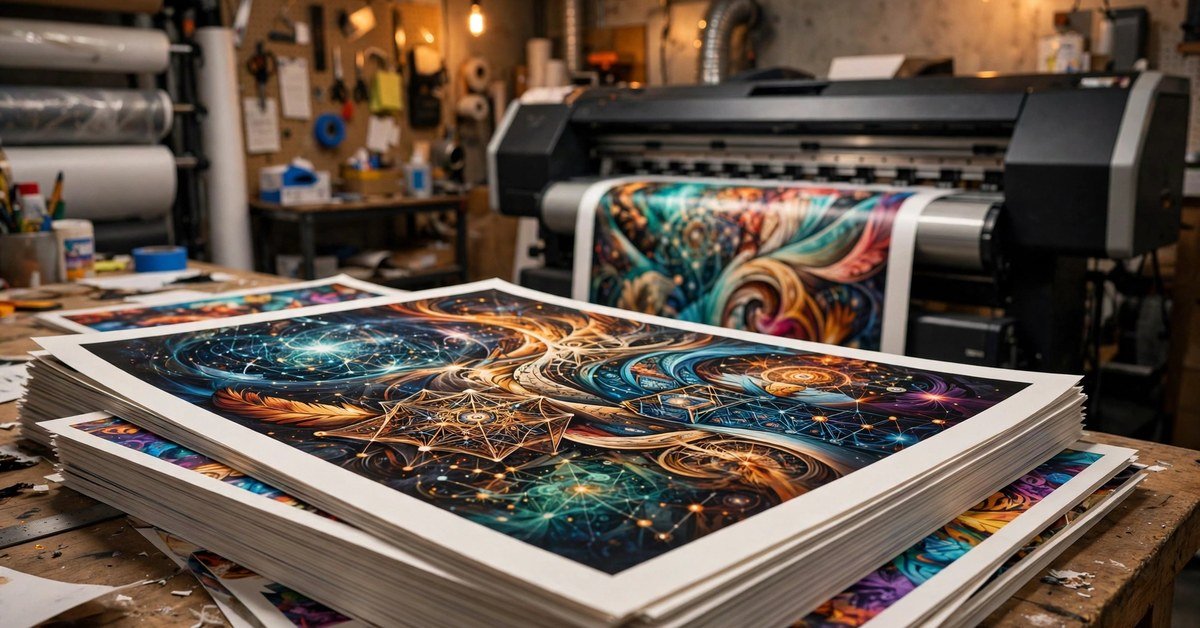
Screen posters forgive everything. Print does not. For a standard A3 poster, aim for 300 DPI, which means roughly 3500 by 5000 pixels. Export as PDF from your editor, not as a screenshot. Check the text at full zoom before you send the file anywhere, because a spelling error you catch on screen costs nothing and one you catch at the print shop costs the whole run. If your printer accepts it, ask for a single proof copy before a full batch.
One Rule Worth Keeping
An AI poster generator is a design assistant, not a designer. Let it do what it is good at: atmosphere, composition, and first drafts in seconds. Keep the parts that carry meaning, the words, the dates, the prices, under your control, and verify them with your own eyes. Do that, and a free tool will produce a poster that looks like you hired someone. Skip the verification, and it will produce a poster that looks like you trusted a machine with your spelling.
Poster Questions, Honestly Answered
Which AI generator is best for posters with readable text?
Ideogram is the strongest pick among image models for readable in-image text. Canva’s AI poster generator is the most practical end-to-end choice because you generate the poster and then fix the text with real typography in the same editor. Always zoom in and proofread before using any AI-generated text.
Can I use an AI-generated poster commercially?
It depends on the tool’s terms, which change. Adobe Firefly is the safest option for commercial use since it trains on licensed content. With other tools, check the current terms of service for your plan before putting an AI poster on merchandise or paid advertising.
What resolution does a printed poster need?
For professional printing, 300 DPI at the final print size. An A3 poster needs roughly 3500 by 5000 pixels. Export as PDF for print and keep the full-resolution original even after you compress a smaller copy for the web.

- How Many Weeks Between Two Dates? A Simple, Accurate Guide - October 16, 2026
- What Elements Are Foundational for SEO with AI? The Two-Layer Framework for 2026 - October 15, 2026
- 9 Best HARO Alternatives in 2026 (After HARO Shut Down) - October 15, 2026