
ChatGPT Advanced Voice Mode in 2026: Live vs Advanced, Voice Changes, and Mic Fixes
Guides from different years describe different products, and that is where most of the confusion starts. The mode you remember from 2024 still exists, but it is no longer the default voice experience. As of October 2026, OpenAI’s own help page calls the whole feature ChatGPT Voice, and the default is a newer model called Live. This guide explains what changed, which mode to pick for which job, and how to change the ChatGPT voice, fix microphone problems, and tell a live conversation apart from simple read aloud playback.
The name changed, but Advanced Voice Mode is still there
Advanced Voice Mode launched in 2024 as a real time voice experience you could interrupt instead of waiting for a turn to finish. In July 2026, OpenAI made Live the default voice mode, and the older Advanced mode moved into the settings menu. It was not deleted. Open ChatGPT, go to Settings, then Voice, and you can still choose between Live, Advanced, and Standard, subject to what your account offers.
That distinction matters because the three modes are not just three names for the same thing. Live is the conversational default, built to listen and speak at the same time, so you can talk over it the way you would on a phone call. Advanced is the previous real time mode, kept because it still does two things Live does not: video and screen sharing. Standard is the original turn by turn mode, which transcribes your speech first and then replies. Trust what your own account shows under Settings, then Voice.
Live, Advanced, and Standard at a glance
Use Live for everyday talking, Advanced when you need to show ChatGPT something, and Standard when your connection is weak or you want the simplest possible behaviour.
| Mode | Best for | Talk over it | Camera or screen sharing |
|---|---|---|---|
| Live | Everyday voice conversations | Yes | No |
| Advanced | Showing something, or chatting inside a custom GPT | In turns | Yes, on iOS and Android |
| Standard | Weak connections, simple spoken replies | No | No |
Live does not work inside custom GPT chats, so those still run on Advanced Voice Mode, which is why a custom GPT chat can sound different from your usual chats.
How to talk to ChatGPT with your voice
Starting a voice chat takes less than a minute once microphone permission is granted. You do not need to configure anything in advance: the default Live mode is ready to use, and you can adjust the voice and language afterwards. This is also the quickest answer to how to voice chat with ChatGPT, and to how to get ChatGPT to talk to you, because both questions describe the same action from opposite sides of the conversation.
Treat the session as a call rather than a search box: speak in full sentences, pause naturally, and interrupt when the answer goes off track.

- Open the ChatGPT app on your phone, or open ChatGPT in your browser.
- Tap the waveform voice icon in the message bar.
- Allow microphone access when your device asks for it.
- Start talking. If this is your first voice chat, you may be asked to pick a voice first.
- Tap the exit or end control when you are done. The transcript stays in your chat history, so you can read back what was said.
A ChatGPT voice conversation works best where typing slows you down: brainstorming while you walk, practising a language out loud, or asking follow up questions that would take several typed messages to explain. For code or a formal draft, switch back to text for the final version and check it first. If the job is a quick word count or format conversion rather than a conversation, Techlspro’s free tools handle it without an account.
How to change the ChatGPT voice
Changing the voice is a settings change, not something you request mid conversation, and that is the detail most people miss. If you change the voice while a voice call is running, OpenAI’s help page says the change starts a new voice call inside the same chat, so finish your thought first.
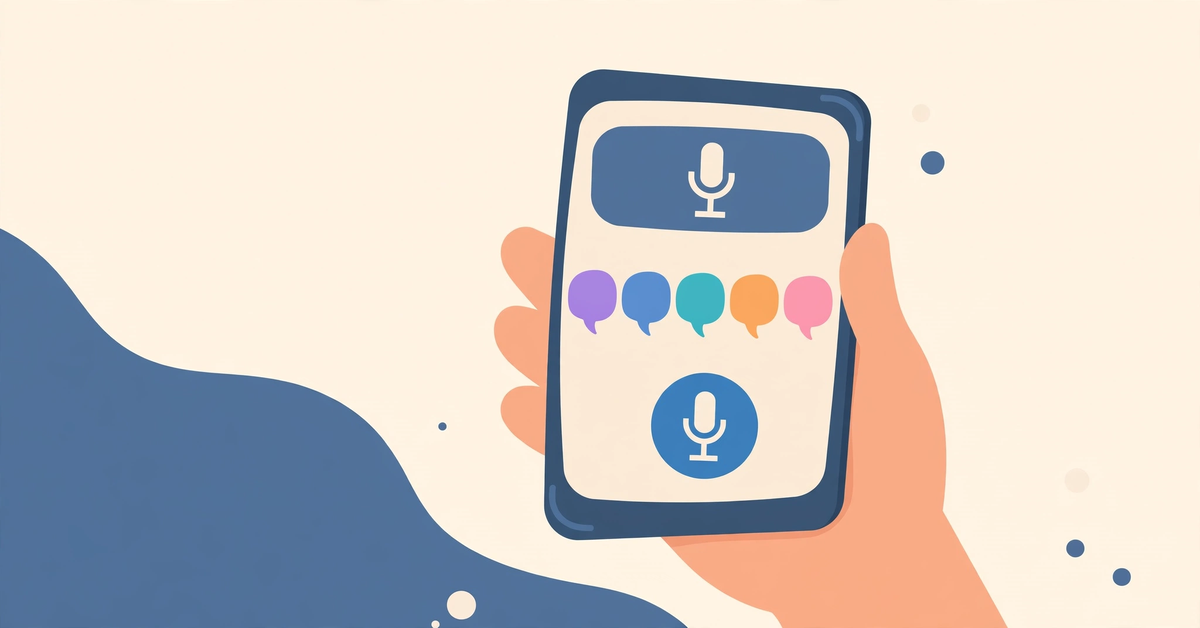
- Open ChatGPT and go to Settings.
- Select Voice, then select Voice again to see the available voices.
- Preview a few voices and pick the one you like. The nine standard voices are Arbor, Breeze, Cove, Ember, Juniper, Maple, Sol, Spruce, and Vale.
- Live also offers extra language voices, including options for French, German, Hindi, Japanese, Korean, Mexican Spanish, and Brazilian Portuguese, plus Bubbie in English. Which voices appear can vary by region and account.
- To set the language you speak most, go to Settings, then Voice, then Language. Picking the right language helps ChatGPT understand you.
The path is always the same: Settings, then Voice, then Voice. If the voice you want is missing, update the app; if it still does not appear, your account may not have the newest lineup yet.
How to enable mic access in ChatGPT when it will not listen
Most voice failures are permission failures. If text chat works but ChatGPT cannot hear you, work through these checks in order and stop as soon as one fixes it.
- Check the first prompt. The first time you start a voice chat, your phone or browser asks whether ChatGPT may use the microphone. If you tapped “deny” by accident, no setting inside ChatGPT can override that choice.
- On a phone, open device settings, find the ChatGPT app, and confirm microphone permission is on. On a computer, check the browser permission for the ChatGPT site, usually shown as a microphone icon in the address bar.
- Close other apps holding the microphone, such as a video call or a recorder, then try again.
- Try a wired headset if the built in microphone sounds muffled. Bluetooth headsets work, but they can add a small delay.
- Update the ChatGPT app, then restart it. Voice lineups and settings change often, and an old version can hide newer options.
If permission is on and the app is current, test Standard mode instead: a pass there points to the live mode or the network, not the microphone.
Read aloud is not the same as a voice conversation
Two features get mixed up constantly. ChatGPT read aloud plays back a single written answer on demand. Voice mode turns the whole exchange into a spoken conversation, with your microphone live and replies spoken as they arrive. If you only want to hear one answer while you cook or drive, read aloud is the lighter tool. If you want to ask follow up questions out loud, you need voice mode.
Can ChatGPT read out loud? Yes. On mobile, press and hold a reply and choose Read Aloud. On the web, use the speaker control under the message where it appears. Playback controls let you pause and move back or forward, and the voice follows the one you picked in settings. Read aloud does not listen to you and does not open a call.
How much talking time does each plan get?
Voice time is measured separately from text chat. OpenAI’s help page states the Live allowance over a rolling 24 hour period, and ChatGPT warns you in the app as you approach the limit. Treat your in app counter as the final word for your account, because these figures change often.
| Plan | Live voice allowance per rolling 24 hours |
|---|---|
| Free | Limited access to GPT-Live-1.1 Quip, with limits that may change |
| Go | 3 hours with GPT-Live-1.1 Quip |
| Plus | 3 hours with GPT-Live-1.1 |
| Pro ($100/month) | 15 hours with GPT-Live-1.1 |
| Pro ($200/month) | Unlimited GPT-Live-1.1, subject to abuse guardrails |
Two practical points follow. Paying buys hours and the fuller model, not voice access itself, because free accounts also get a working version of Live. When a Plus or Pro allowance runs out, the session ends rather than dropping to a smaller model. For the full current limits, see OpenAI’s ChatGPT Voice help page. If you are weighing ChatGPT against other assistants for voice work, our ChatGPT alternatives guide groups the options by the job they do best.
Voice questions readers actually ask
Is ChatGPT Advanced Voice Mode gone?
No. It is no longer the default, but it is still selectable under Settings, then Voice, alongside Live and Standard. It remains the mode for video and screen sharing on iOS and Android, and for conversations inside custom GPTs.
How do I start a voice chat with ChatGPT?
Tap the waveform voice icon in the message bar, allow microphone access, and start talking. The transcript stays in your chat history after the call ends.
How do I change the ChatGPT voice?
Go to Settings, then Voice, then Voice, preview the options, and pick one. Changing the voice during a call starts a new voice call in the same chat, so change it between conversations when you can.
Can ChatGPT read a single answer out loud without a voice call?
Yes, with Read Aloud. Press and hold a reply on mobile and choose Read Aloud, or use the speaker control under the message on the web. It plays one answer back and does not open a live conversation.
Do I need a paid plan to talk to ChatGPT?
No. Free accounts get limited Live voice access, while paid plans add hours and, on Plus and Pro, the fuller GPT-Live-1.1 model. Check your in app counter for your current allowance, because limits change.
Talk first, then type what matters
The useful habit is simple: talk when thinking out loud helps, and type when precision matters. Keep Live as your default, remember that Advanced is still one tap away for camera, screen sharing, and custom GPT chats, and set the voice and language once in Settings. The name on the menu changed in 2026, but a spoken conversation is still the fastest way to turn a half formed question into a clear next step, as long as you check the final wording in text before it leaves your hands.

- ChatGPT Advanced Voice Mode in 2026: Live vs Advanced, Voice Changes, and Mic Fixes - October 27, 2026
- ChatGPT Agent Mode Explained: What It Does, How to Use It, and How to Stay Safe - October 27, 2026
- ChatGPT Scheduled Tasks: Setup, Plan Limits, and Daily Routine Ideas - October 26, 2026