ChatGPT Canvas Is Retired: What It Was and What Replaces It in 2026
If you searched for ChatGPT Canvas and landed on a tutorial telling you to pick a special model from the menu, stop. As of October 2026, that feature is gone from current ChatGPT models. OpenAI retired Canvas, and the old open-Canvas instructions no longer lead anywhere. This article explains what is ChatGPT Canvas, what it actually did, why it disappeared, and how to do the same editing work today with the tools that replaced it. Nothing here asks you to hunt for a menu option that no longer exists.
What ChatGPT Canvas Was
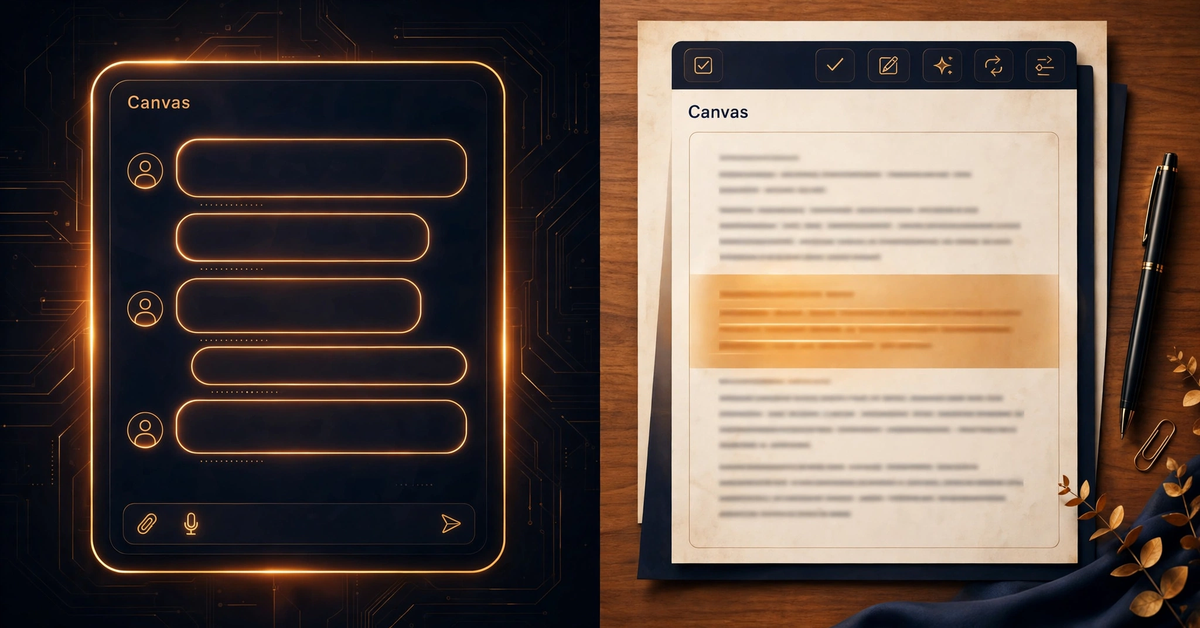
Canvas was a side-by-side editing workspace inside ChatGPT, launched in October 2024. Instead of rewriting a whole document in the chat thread every time you asked for a change, your draft opened in its own panel next to the conversation. You edited the draft in place, and you talked to ChatGPT about it from the same screen. That separation was the whole point: the conversation guided the work, and the document stayed the document.
The canvas interface had two faces, and they mattered for different jobs. Writers got a document panel with shortcuts for length, reading level, and polish. Coders got a code panel with review, commenting, and fix suggestions. Both shared the same core idea, which was editing one thing in place instead of regenerating everything from scratch.
Over time, Canvas updated several times, moving from a separate model choice to an integrated part of GPT-4o. That history is why old guides disagree: each one describes Canvas at a different stage of its short life.
The Writing Workflow and the Coding Workflow, Side by Side
People often ask what is canvas in ChatGPT in one sentence. The honest answer is that it was two workflows sharing one panel.
| Step | Writing workflow | Coding workflow (canvas programming) |
|---|---|---|
| Start | Ask for a draft, such as an email, essay, or report, and it opens in the document panel. | Ask for code, such as a Python script, and it opens in the code panel. |
| Targeted edit | Highlight one paragraph and ask for a tighter version, a friendlier tone, or a simpler reading level. | Highlight one function and ask what it does, where the bug is, or how to simplify it. |
| One-click help | Shortcuts adjusted length, reading level, and polish without retyping the request. | Shortcuts added comments, reviewed the code, and suggested fixes. |
| Version control | A back button restored an earlier draft version after a rewrite went wrong. | The same version history let you return to working code after a bad edit. |
| Finish | Copy the final text into your own editor or document. | Copy the code into your own project and run it there. |
The version history deserves emphasis, because it was the feature plain chat could not match. In a normal chat, a rewrite replaces the previous answer, and recovering the better version means scrolling back and copying it by hand. In Canvas, the draft kept its versions, so a bad revision cost one click instead of a lost afternoon.
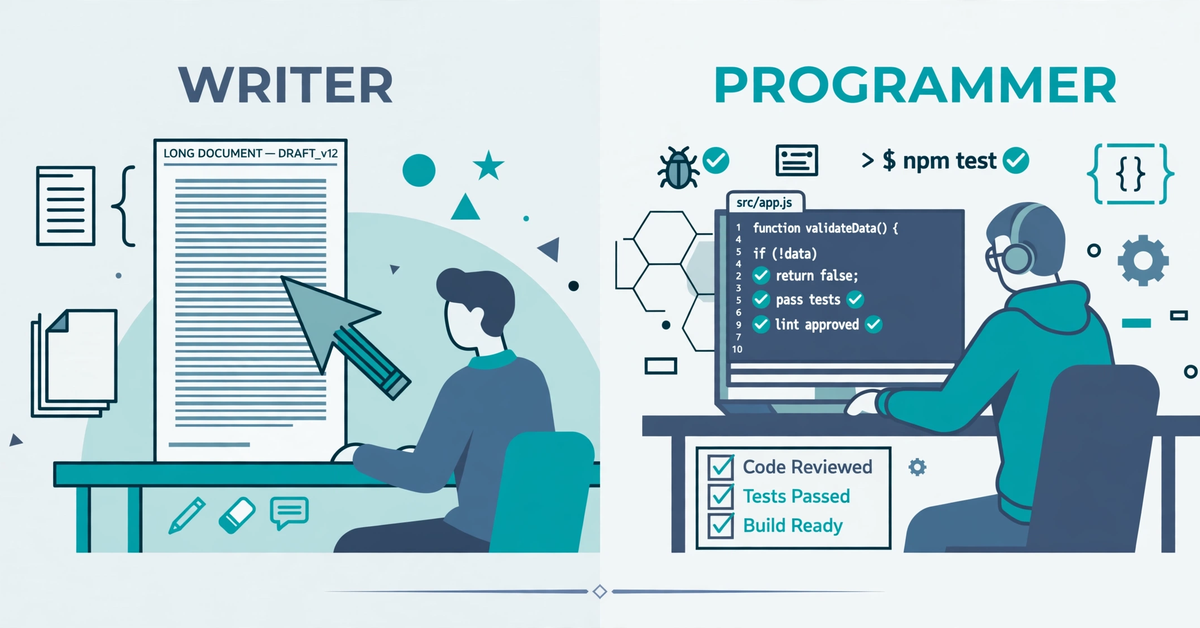
That precision is what made Canvas feel like a real workspace. A writer could ask for one paragraph to sound warmer while the rest stayed as approved. A coder could ask for comments on one function without risking a rewrite of the whole file. It is also worth naming what Canvas never was: not Canva, the design tool, and not a learning management system. The ChatGPT Canvas feature was an OpenAI Canvas panel built into ChatGPT itself, for text and code, with nothing to install and nothing to publish from.
Why Canvas Disappeared, and What Replaced It
OpenAI removed Canvas from its current models in May 2026. Its release notes for the GPT-5.5 update state that Canvas would no longer be available in GPT-5.5 Instant or GPT-5.5 Thinking, and that writing and coding functionality would be supported directly in chat responses through writing blocks and code blocks. Paid users kept temporary access through older legacy models during a transition period, but those models have since been retired. By October 2026, there is no current-model path back to Canvas, and OpenAI support staff have confirmed in the community forum that Canvas has been retired.
The replacement is not one feature but a split. Inside a chat, writing blocks and code blocks now do the in-conversation editing job. A writing block is an editable area for draft text, such as an email, a message, or a document. A code block keeps code separate from the rest of the response so it is easier to read, copy, edit, preview, or run. OpenAI’s help pages describe both as the current way writing and coding work in ChatGPT, and warn that available actions vary by plan, device, workspace settings, and model.
For longer, shared document work, OpenAI now points users toward ChatGPT Work, which creates and edits documents, spreadsheets, and presentations, including native Google Docs, Sheets, and Slides where the relevant app is enabled. That is a different kind of tool from Canvas: it produces files and templates rather than a side panel inside one chat. It is useful to know about, but it is not a renamed Canvas.
One more honest note: some users dislike the change, and their complaint is specific. A writing block lives inside one conversation, while a Canvas document felt like a persistent panel beside it. If you kept a long-running project document in Canvas, the block model makes that document harder to find later, because you must remember which conversation holds it. OpenAI has not announced a return date for Canvas, so plan around the current tools rather than waiting for it.
How to Do the Same Work Today
The good news is that the core Canvas habits transfer directly. The container changed, not the craft.
For writing: use a writing block
Ask ChatGPT to draft something you will revise, and it may place the draft in a writing block automatically. You can also ask directly. Useful starting prompts include:
- Draft a reply email to my manager about the delayed report, in a calm and professional tone.
- Turn these meeting notes into a one-page summary with headings.
- Write a short team update about the new schedule, then keep it under 150 words.
Once the block exists, edit the text directly, or select one passage and ask ChatGPT to revise only that selection. You can open the block in a full-screen editing view, undo or redo AI-assisted edits, and copy the finished text into your own document. When a draft is worth keeping, save supported document drafts to your Library where that option is available.
For coding: use a code block
Ask for code as usual, and ChatGPT places it in a code block with a language label. From there you can copy it, edit supported blocks directly, ask ChatGPT to fix or explain a section, and preview supported formats such as HTML pages or charts. For supported Python code, you can run it and see console output.
Two habits from the Canvas era are worth keeping deliberately. First, always check AI-assisted edits before accepting them, especially in code, where a plausible-looking change can break a working function. Second, keep your finished work outside ChatGPT: copy final text into your document and final code into your project repository. A conversation is not a version-controlled project, and Temporary Chat edits may not persist at all.
Honest Limits of the Replacement
The replacement tools are good for drafts and single files, and they stop there. Naming the limits now saves a frustrating afternoon later.
- Single panel, single item: a writing block holds one draft and a code block holds one snippet. There is no multi-file project view, so a real codebase still belongs in a proper editor.
- No hosting or deployment: nothing in a writing block or code block publishes a website or deploys an app. A preview inside ChatGPT is not a live site.
- Persistence is conversation-bound: your draft lives inside the conversation that created it. Long projects need an external home, such as a document, a repository, or ChatGPT Work files saved to your Library.
- Availability varies: OpenAI states that block actions vary by plan, device, workspace settings, and rollout. If a button described here is missing for you, that is a rollout difference, not a mistake in your account setup.
- Review everything: AI edits can introduce errors, change meaning, or invent details. Read the final version yourself before sending, publishing, or running it.
Readers who loved Canvas most, the long-document writers and the multi-week project keepers, feel these limits hardest. For them, the practical answer is a hybrid: draft and revise in writing blocks, then move the finished work into a real document or project system the same day. Do not let a growing project live only inside chat history.
If your main need is choosing a different assistant altogether for long documents, our guide to ChatGPT alternatives groups the options by job, including tools that handle long documents more steadily. And if you want free browser tools for the writing side, such as word counting and text checks, see our free online tools page. For the authoritative current details, OpenAI’s help page on working with writing blocks and code blocks and its page on creating and editing documents with ChatGPT Work are the sources to trust over old tutorials.
Questions Readers Still Ask About ChatGPT Canvas
Does ChatGPT Canvas still exist?
No. As of October 2026, Canvas has been retired from current ChatGPT models. OpenAI removed it from GPT-5.5 Instant and GPT-5.5 Thinking in May 2026, and the temporary legacy-model access has ended. If a guide tells you to open Canvas today, it is out of date.
What is ChatGPT Canvas mode?
It was the original way to reach Canvas: a model picker entry, first called GPT-4o with Canvas, that opened the side-by-side workspace. Later Canvas became integrated into GPT-4o itself, so the separate mode went away before the feature was retired. Neither the mode nor the feature is available on current models.
What replaced ChatGPT Canvas?
Writing blocks and code blocks inside chat responses replaced it for everyday editing. Writing blocks hold editable draft text, and code blocks hold code with preview and run options for supported formats. For larger shared files, ChatGPT Work creates and edits documents, spreadsheets, and presentations.
Can I recover an old Canvas document?
There is no documented OpenAI tool that converts an old Canvas into a current writing block or Work file. Old conversations may still show their Canvas content, but current models may not be able to work with it as a live document. If you can still open an old Canvas, copy its text into your own document now rather than assuming it will stay accessible.
Is Canvas the same as Canva?
No. Canva is a separate design product for graphics and presentations. ChatGPT Canvas was OpenAI’s editing panel inside ChatGPT for text and code. The similar names cause constant confusion in search results, so check the product name before following any tutorial.
Keep the Editing Habits, Drop the Hunt for Canvas
Canvas earned its fans for a simple reason: it let you edit one passage without disturbing the rest, and it kept versions when a rewrite went wrong. That idea survives in writing blocks and code blocks, even though the side panel itself is gone. Start drafts in a block, revise by selection rather than by full rewrite, check every AI edit, and move finished work into your own document or project the same day. If you do that, the retirement costs you a familiar panel, not the workflow itself. And the next time a tutorial tells you to open Canvas, you will know to close that tab and use the current tools instead.

- ChatGPT Advanced Voice Mode in 2026: Live vs Advanced, Voice Changes, and Mic Fixes - October 27, 2026
- ChatGPT Agent Mode Explained: What It Does, How to Use It, and How to Stay Safe - October 27, 2026
- ChatGPT Scheduled Tasks: Setup, Plan Limits, and Daily Routine Ideas - October 26, 2026