
How to Create a Custom GPT in 2026: Who Can Build One Now
Most tutorials about how to create a custom GPT still read as if anyone with a paid plan can open a builder and publish a new assistant. As of October 2026, that is no longer the starting point. Check first whether your account can build one at all, and whether the result will still work after December.
Read This First: Who Can Still Create a Custom GPT?
A custom GPT is a tailored version of ChatGPT with its own instructions, optional reference files, and optional capabilities. It answers in a set way, for a set job, instead of starting from a blank chat every time.
OpenAI says custom GPTs are scheduled to retire on December 11, 2026, with February 11, 2027 only for affected Enterprise workspaces with a qualified, approved deferral. Its Help Center FAQ says the transition affects all ChatGPT plans, and that restrictions on creating or publishing GPTs are separate from retirement. Multiple 2026 reports citing OpenAI’s Help Center say new GPT creation and publishing are not available on Free, Go, Plus, or Pro accounts. If your account shows something different, follow your in-product notice.
| Account or workspace | Can you create a new GPT now? | What matters most |
|---|---|---|
| Personal Free, Go, Plus, or Pro | No new creation or publishing | Do not buy a personal plan just for GPT creation. |
| Business, Enterprise, or Edu, where an admin permits it | Yes, while your workspace allows it | For affected Enterprise workspaces, October 26, 2026 is the planned end of new creation. Dates are subject to change. |
| An existing GPT you already own or use | Editing depends on plan and permission | Existing GPTs remain usable until their applicable retirement date. |
So a new GPT built in late October 2026 has a short life as a GPT. Build one only with an eligible workspace, a real job for it now, and a plan to migrate it. Do not promise that a GPT link will keep working, and do not treat GPT Store publishing as a way to earn money from this build. OpenAI says custom GPTs and their GPT pages become inaccessible at the applicable retirement date. See OpenAI’s custom GPT retirement and migration FAQ for the official timeline.
If Your Personal Account Cannot Create One, Do This Instead
Write the job in one sentence first: who the assistant helps, what task it completes, what information it uses, and what output it returns. That sentence stays useful whether you end up in a Project, a plugin, an ordinary chat, or a different tool.
If your work is mainly instructions plus files, rebuild it as a Project-style workspace in your account, where that option is available, and upload the same reference documents there. If you need a tool that connects to other apps, the longer-term OpenAI path is a plugin, not a GPT, but plugins take more setup. If the job is simply better prompting, learn how to customize ChatGPT through careful prompts and custom instructions in ordinary chats. If the real need is a different assistant for a specific job, compare the options in our ChatGPT alternatives guide instead.
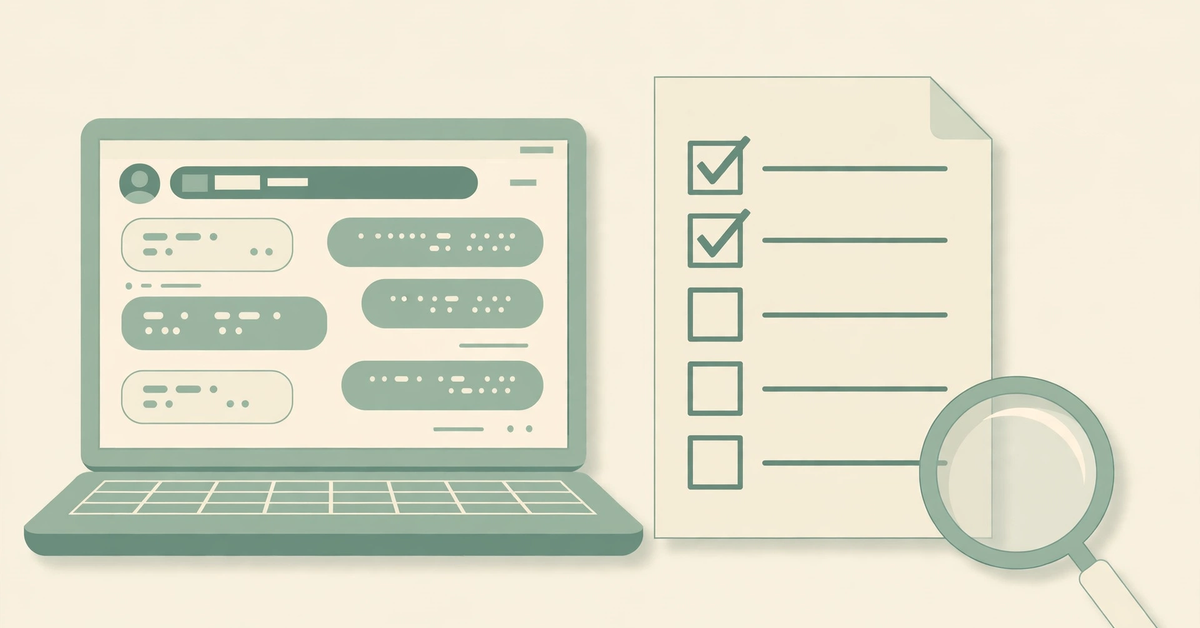
Two shortcuts are not real shortcuts. You cannot host a custom GPT externally to keep an OpenAI GPT alive after retirement, because it runs inside ChatGPT and its page becomes inaccessible at retirement. You also cannot download your own ChatGPT assistant as a standalone file to run somewhere else. Save your own material instead: instructions, files, test prompts, and notes on what worked.
How to Create a Custom GPT in an Eligible Workspace
This section is for readers in a Business, Enterprise, or Edu workspace where an admin has permitted GPT creation. Menu labels can change, so look for the same function if a label differs on your screen.
Open the GPT builder and choose your starting point
On the web, open Explore GPTs from the sidebar, then choose Create. The GPT builder offers a conversational Create view, where you describe the assistant and the builder drafts the setup, and a direct configuration view, where you edit the fields yourself. Start conversationally, then switch to the direct view to tighten the wording. Use the web version: creating a GPT is not a mobile task, and a missing Create button usually means a permission setting, so ask your admin.
Give it a job, a name, and a description
Name the GPT for its job: “Meeting Notes Formatter” tells a user more than “Helper Bot” ever will. Write a short description saying who it is for and what it does, and add conversation starters matching real tasks, not generic greetings. If you are trying to make your own GPT for a team, scope matters most: one job, one audience, one kind of output. A GPT that tries to write marketing copy, review contracts, and plan travel will do all three badly.
Write instructions that actually control behaviour
Put the goal first, then the steps in order, then tone, output format, and limits. Say what to do when information is missing, and what never to invent: dates, prices, names, or facts the assistant cannot verify from its files or a trusted source. Keep examples short. Long instructions are not automatically better: every extra rule is another rule the assistant can misapply, so test each rule and cut the ones that do not change the output.
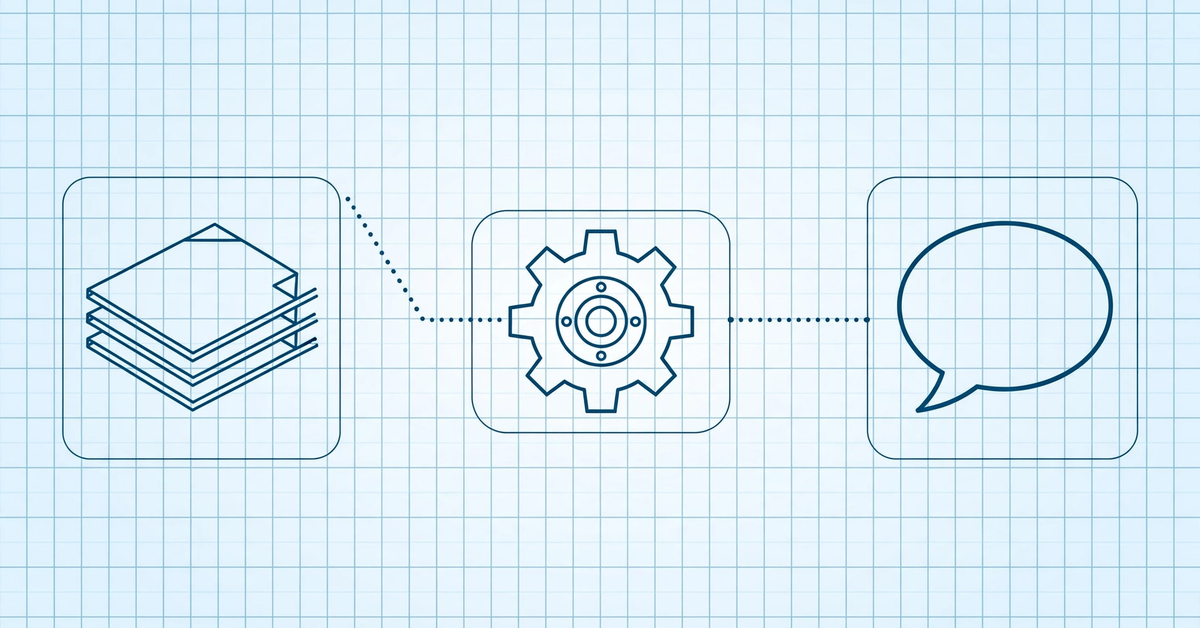
Test three prompts before you publish: one easy, one incomplete, and one deliberately awkward. If it invents an answer for the incomplete prompt, add a rule telling it to ask for the missing detail instead. That habit shows how to build a GPT that survives real users, because the first messy request always arrives sooner than expected.
Add knowledge, not a data dump
Upload only the documents the job actually needs, and check that each file is current. Treat uploaded files as material the assistant may quote or summarise, so never upload passwords, API keys, private customer data, or anything you would not want quoted back in a chat. Remove drafts and duplicates first, because conflicting files produce conflicting answers.
Add capabilities and actions only where they are needed
Capabilities such as web browsing, image generation, or data analysis should match the job, not the wish list. Enabling everything makes behaviour harder to predict. Custom actions, which connect a GPT to another service through an API, need correct endpoint details, sensible permissions, and testing with real data, and they do not transfer automatically to a plugin. If you want to set up automated GPT conversations through actions, note the limit: a GPT responds when a user talks to it. It is not a background worker that runs on its own schedule.
Test in Preview before you save
Run your three test prompts in Preview, plus a prompt with a file attached if files are part of the job, and one that pushes against a limit you set. Fix the instructions, not the test, when the answer is wrong: rewording the prompt until the GPT passes tests the prompt, not the GPT. When answers are steady, publish the version you intend to migrate, because migration uses the latest published version and drafts do not transfer.
Save, Share, and Prepare for Migration
Sharing options depend on your workspace: private use, sharing inside the workspace, or wider sharing where permitted. Choose the narrowest option that serves the users who need it, and check with your admin before sharing outside the workspace.
When migration is available, OpenAI directs creators to My GPTs and the “Migrate to plugin” option. Test the replacement with the same familiar prompts you used in Preview, plus one harder case. The migrated plugin starts private, migration does not automatically install it or give other people access, and sharing settings do not carry over, so users will need the replacement handed to them and tested by them. Custom actions need rebuilding, and the GPT’s selected model does not carry over. For a prompt-length check, our free tools page includes a GPT token counter.
Mistakes That Make a Custom GPT Useless
The most common failure is building a GPT for a job nobody does twice. If a task happens once, a good prompt in an ordinary chat is faster, easier to change, and needs no migration. A GPT earns its setup cost only when the same job repeats with the same rules, files, and output format.
The second failure is trusting the first good answer. A GPT can sound confident while using an outdated file, skipping a step, or filling a gap with a plausible guess. Keep a short checklist: what it must never invent, what file it must use, what format it must return, and what it must ask when detail is missing. Run it after every instruction change, and tell users what the GPT cannot do, so they do not discover the limit on an important task.
Custom GPT Questions Readers Ask Before Building One
What is custom GPT, in simple terms?
A custom GPT is a version of ChatGPT tailored for one job, with its own instructions and optional reference files and capabilities. It is not a separate AI model.
Can I still create a GPT on ChatGPT Plus?
As of October 2026, no, not as a new GPT. Multiple 2026 reports citing OpenAI’s Help Center say new creation and publishing are not available on personal accounts, including Plus and Pro, while eligible Business, Enterprise, and Edu workspaces can still create where settings allow.
How is creating a GPT different from how to customize ChatGPT in ordinary chats?
Ordinary customisation changes how ChatGPT answers you, through prompts or personal instructions. Creating a GPT packages instructions, files, capabilities, and starter prompts into a reusable assistant that other permitted users can also open.
When do custom GPTs retire, and what happens to my GPT links?
OpenAI schedules retirement for December 11, 2026, with February 11, 2027 only for affected Enterprise workspaces with a qualified, approved deferral. At the applicable retirement date, custom GPTs and their GPT pages become inaccessible, so do not rely on old links.
Should I build a GPT now, or start with a plugin or Project instead?
If you are in an eligible workspace and need the GPT this week, build it, publish the essential version, and start migration planning at the same time. If you are on a personal account, or the job can wait, start with a Project-style workspace or a plugin path instead. Ask which tool will still open for your users in January.
Build Only What You Can Migrate
Learning how to create a GPT in 2026 is less about the builder screen and more about the decision before it. Check eligibility first, save your own instructions and files, build narrowly for a repeating job, test with awkward prompts, and publish only the version you intend to migrate. If you cannot build, rebuild the workflow somewhere durable instead of waiting for a button that is not coming back.

- ChatGPT Advanced Voice Mode in 2026: Live vs Advanced, Voice Changes, and Mic Fixes - October 27, 2026
- ChatGPT Agent Mode Explained: What It Does, How to Use It, and How to Stay Safe - October 27, 2026
- ChatGPT Scheduled Tasks: Setup, Plan Limits, and Daily Routine Ideas - October 26, 2026