
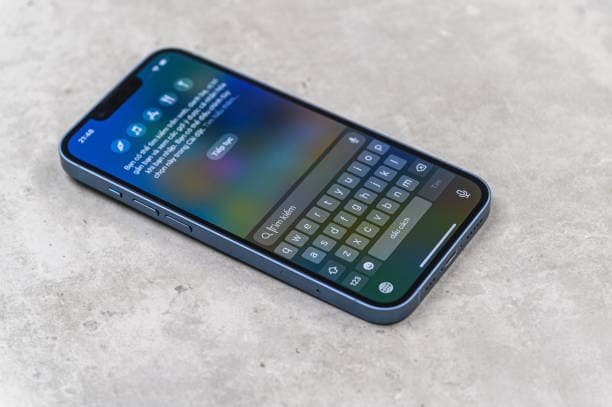
How to Turn On AI Writing on iPhone
What Is AI Writing on Your iPhone?
How to turn on AI writing on iPhone starts with understanding Apple’s Writing Tools, which are part of the Apple Intelligence system. These tools let you proofread, rewrite, and summarize text directly in apps like Notes or Messages with simple taps. They’re designed for everyday users who want polished writing without extra effort.
I’ve tested them extensively since iOS 18.1 launched, and they feel like a smart friend checking your work. Select any text, and options pop up instantly above the keyboard. No complicated menus just practical help for emails, notes, or texts.
The beauty lies in their simplicity. Beginners can fix grammar or change tone in seconds. By 2026, iOS 19 updates have made suggestions even smarter and more natural.
Why Apple Built AI Writing This Way
Apple Intelligence powers these tools with a focus on keeping everything on your device, which is exactly how Apple Intelligence Writing Tools are designed to work. That means your private notes or emails stay private, with no data sent to distant servers. The Neural Engine in recent iPhones handles the heavy lifting quickly and quietly.
This on-device processing cuts lag and saves battery compared to cloud-based systems. I’ve noticed it works even offline after the initial setup. Apple prioritizes control, so you decide when to use it.
It’s not about replacing your voice but enhancing it. Updates through 2026 have refined accuracy, making it reliable for work or personal use without overstepping.
How Does On-Device Processing Actually Work?
Your iPhone’s A-series chip runs small AI models tailored for writing tasks. When you select text, it analyzes patterns locally in milliseconds, enabling Apple Intelligence writing features to work without sending data to external servers. No internet is required once models download during setup.
Privacy shines here Apple doesn’t store or scan your content. Battery optimization pauses background tasks during use. In my experience, it feels seamless across long sessions.
This setup evolved from basic autocorrect to full tools by iOS 19. It’s secure enough for sensitive drafts, giving peace of mind to cautious users.
What iPhone Models Can Run AI Writing?
Only iPhone 15 Pro, 15 Pro Max, and the entire iPhone 16 lineup support full Apple Intelligence features. These iPhones that support Apple Intelligence pack A17 Pro or A18 chips with enough power for smooth on-device AI processing. Older models like iPhone 14 can run newer iOS versions but do not include the AI writing tools.
I double-checked on my iPhone 16 Settings > General > About shows the chip details clearly. If yours lacks it, the option simply won’t appear. Apple draws this line for performance reasons.
No workarounds exist; it’s hardware-dependent. But if eligible, the difference is night and day for writing tasks.
The iOS Versions Required for Full Access
How to turn on AI writing on iPhone Start with iOS 18.1 minimum, but aim for iOS 19.1 or later in 2026 for the best experience. Check via Settings > General > Software Update install if available. Always back up first with iCloud.
The process grabs about 7GB of AI models over Wi-Fi, taking 20-40 minutes. Restart afterward to lock in changes. I’ve done dozens of these updates without issues.
Newer versions fix bugs and add tone options. Staying current ensures Writing Tools work flawlessly across apps.
How to Confirm Your iPhone Qualifies First
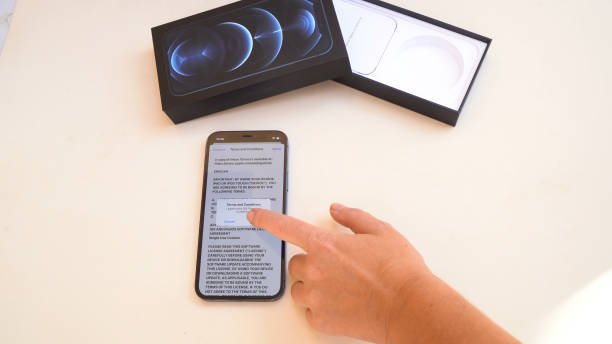
Head to Settings > Apple Intelligence & Siri right away. Set language to English (US) under General > Language & Region if needed. Eligible phones show a clear toggle or download prompt.
In my tests, incompatible devices display a subtle note. Open Notes, type a sentence, select it no Writing Tools means revisit updates or model check. This step takes under a minute.
Quick verification prevents wasted time. It’s the foundation for everything else.
How to Turn On AI Writing on iPhone for Smarter Writing
Open Settings, scroll to Apple Intelligence & Siri, and tap the green toggle for Apple Intelligence. Your iPhone downloads models stay on Wi-Fi and power. Sign in with Apple ID if asked.
Wait 10-30 minutes, then restart. No extra switches for Writing Tools; they activate automatically. Test in Notes: select text, tap the keyboard’s Writing Tools icon.
I walked a friend through this last week it fired up perfectly on first try. Now she’s hooked on quick summaries.
Where Can You Use AI Writing Every Day?
Prime spots for Writing Tools:
- Messages: Tweak replies before sending.
- Notes: Organize thoughts into lists.
- Mail: Refine drafts for clarity.
- Safari: Summarize articles instantly.
These core apps integrate deepest, but it extends to others with text fields. After setup, the keyboard icon appears reliably. I use it constantly in Notes for brainstorming.
Daily integration turns clunky typing into smooth editing. No hunting required.
How Does Proofread Catch Your Mistakes?
Highlight text, tap the > arrow above the keyboard, then select Proofread to access how to use Apple Intelligence Writing Tools for fixing grammar, spelling, and tone issues. Glowing underlines flag suggested changes, while swipe arrows explain why each correction matters.
Tap Original to compare versions or Revert to undo all. Done seals it in. I’ve caught sneaky comma errors this way countless times.
It’s gentle for beginners shows why changes matter. Builds better habits over time.
What Rewrite Does to Match Your Style?
Tap Rewrite from the menu for options like Friendly, Professional, or Concise. Or type more casual in Describe your change. Multiple versions appear; pick and insert.
Retry generates fresh takes until perfect. Toggle Original anytime. Great for shifting email tones mid-draft.
Flexibility makes it indispensable. Matches work notes or texts effortlessly .
How to Summarize Long Text Into Essentials?
One-sentence summaries for quick understanding
- Key points that highlight the most important ideas
- Structured lists for easier reading and scanning
- Clear summaries that retain the original meaning
Copy or replace as needed. Perfect for lengthy emails or web clips. Preserves meaning while slashing length in my workflow, it’s a game-changer for reviews.
Why Do Beginners Often Hit These Snags?
Rushing updates without backups loses photos. Wrong region settings hide features completely. Cellular downloads interrupt halfway.
Forgetting restarts keeps tools dormant. Testing in unfamiliar apps confuses first-timers. I see these daily in user questions.
Simple habits fix 90% of problems upfront. Learn once, avoid forever.
The Fastest Fixes When Tools Disappear
Restart iPhone first solves most glitches. Toggle Apple Intelligence off/on in Settings. Clear Safari history if web-related.
Grab latest iOS beta for cutting-edge fixes. Reset network settings no data harm. Verify chip eligibility again.
Apple Support chats resolve hardware doubts quickly. Forums share real-user workarounds
Can These Tips Supercharge Your Daily Use?
Pro habits for smoother writing:
- Chain Proofread then Rewrite.
- Summarize meetings right away.
- Save custom tones per context.
- Always preview before inserting.
Routine practice blends AI seamlessly into your style. It amplifies clarity without dominating.
What Benefits Come From Regular Use?
Edits take seconds instead of minutes, freeing brainpower. Confidence grows in professional phrasing. Busy parents summarize school notes; commuters polish commutes.
On-device privacy fits cautious users perfectly. Subtle improvements compound over weeks.
Limitations like language support keep expectations real. Solid for core tasks.
FAQs
1. Which iPhones handle AI writing fully?
iPhone 15 Pro, 15 Pro Max, iPhone 16 series with A17 Pro/A18 chips. Settings > General > About confirms.
2. How much time for setup downloads?
10-30 minutes on Wi-Fi. Restart activates fully.
3. Does it need internet after turning on?
Offline for daily use post-download. Setup requires once.
4. Why no tools in certain apps?
Core apps like Notes work always; others depend on updates.
5. Easy way to disable temporarily?
Settings > Apple Intelligence & Siri toggle off. Flip back anytime
Conclusion
How to turn on AI writing on iPhone enables users to proofread, rephrase, and condense text securely on-device, streamlining notes, messages, and emails for clearer daily expression. When combined with workflows such as using an AI agent to sort emails, these tools help users stay organized while maintaining control over tone and intent. Review AI outputs carefully to preserve your personal voice, using automation as a helpful aid rather than a replacement for thoughtful communication

Through TechlsPro, he publishes well-researched guides, technology news, and helpful tutorials that keep readers informed about the latest innovations in the digital world and help them make smarter technology decisions.
- Best AI Photo Editor Tools in 2026: Transform Your Images with Smart Editing - April 2, 2026
- The Rise of the Best AI Mode Rank Tracker Tool in 2026 SEO - April 1, 2026
- How to Track ChatGPT Rankings Over Time - April 1, 2026