
macOS Security Update 2026: 9 Critical Fixes for Safe Installing
macOS security update patches are vital for protecting your Mac against 2026’s evolving cyber threats. Installing these updates promptly ensures your device remains secure in remote work environments.
macOS security update in 2026: What it is and why it matters now
The macOS security update in 2026 targets critical vulnerabilities across macOS Tahoe 26.2 and legacy versions, patching issues like AppSandbox escapes, Game Center flaws, and kernel-level exploits that could allow unauthorized code execution. These updates address over 46 CVEs in recent releases, many of which were under active exploitation, making them essential for users handling sensitive data or operating in high-risk scenarios. Apple prioritizes these patches to counter sophisticated threats, including those leveraging WebKit rendering bugs or privilege escalations via components like Archive Utility.
In today’s hybrid work landscape, where Macs often connect across unsecured networks, delaying these macOS security updates can expose users to ransomware, data theft, and state-sponsored attacks. Recent developments such as Apple background security updates, which allow faster protection without full system restarts, highlight why timely patching is increasingly important in 2026. For IT administrators managing fleets, compliance with standards like NIST demands rapid deployment, since unpatched systems trigger vulnerability scan alerts. Linking to official resources like Apple Security Updates helps verify specifics, while our Mac privacy checklist provides complementary hardening for comprehensive defense.
How Apple ships macOS security updates: Does the cadence change in 2026?
Apple delivers macOS security updates through multiple channels, including Rapid Security Responses (RSR), full point releases like Tahoe 26.2, and innovative Background Security Improvements rolling out in 26.3 betas. RSR provides urgent, lightweight patches deployable without full restarts, ideal for zero-day responses, while bundled updates in major versions handle comprehensive CVE fixes at sizes around 3-4GB. The 2026 cadence emphasizes automation, with Apple silicon Macs benefiting from faster, battery-efficient installs compared to Intel counterparts.
Background Improvements represent a shift, silently updating WebKit and Safari protections without user intervention, tested extensively in early 2026 betas. This evolution supports remote teams by minimizing downtime, though legacy support for Big Sur and Catalina continues via targeted security branches. Automatic checks via System Settings ensure most users stay current, but manual verification remains key for managed environments.
What to check before you install a macOS security update
Pre-install preparation is crucial for seamless macOS security update deployment.
- Back up your Mac using Time Machine, and follow our How to back up your Mac guide.
- Free up 20-30GB of disk space to accommodate large download files.
- Scan for app compatibility, focusing on third-party kernel extensions.
- Review MDM policies to confirm Rapid Security Response permissions.
These steps minimize risks and help ensure smooth execution. Consult the NIST National Vulnerability Database for information on CVE impacts.
Why delaying a macOS security update can be risky: This is how exploits spread
Delaying a macOS security fixes opens pathways for multi-stage attacks, starting with phishing lures that exploit unpatched WebKit vulnerabilities to steal credentials, followed by sandbox escapes enabling malware persistence. In Tahoe 26.2, Apple fixed such chains involving ImageIO memory corruption and GPU driver flaws, which attackers chain for full system compromise. Remote work amplifies this, as corporate VPNs often route through vulnerable endpoints listed in CISA’s exploited catalog.
Zero-day risks peak within patch windows, with reports showing exploited CVEs like sudo escalations affecting thousands pre-update. Individuals face identity theft, while enterprises risk regulatory fines under GDPR or HIPAA. Proactive installing aligns with security best practices, drastically reducing exposure.
These settings make macOS security updates safer to apply
Configuring key settings optimizes macOS security update processes.
- Enable automatic updates in System Settings > General > Software Update.
- Turn on FileVault for full-disk encryption during installs.
- Set Gatekeeper to App Store and identified developers only.
- Activate the firewall and enable XProtect/MRT scans.
These adjustments provide robust protection before and after patching.
How to install a macOS security update correctly: Step-by-step for 2026
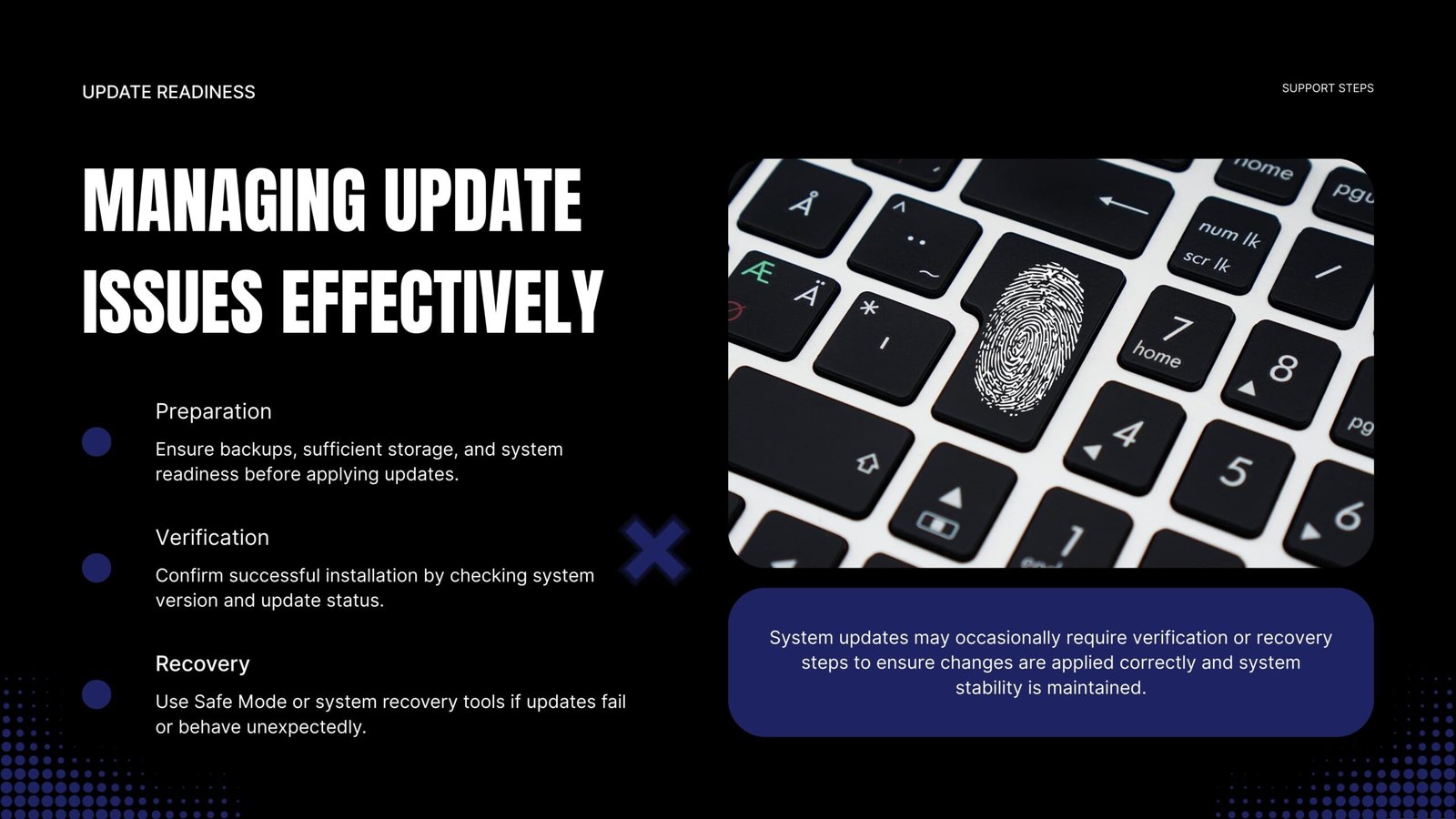
Installing a macOS security update begins in System Settings under General > Software Update, where available patches like Tahoe 26.2 appear with detailed changelogs. Click Update Now, authenticate with your admin password, and allow the download to complete monitor progress to avoid interruptions. Upon readiness, restart as prompted; Apple silicon devices often handle this with minimal disruption, resuming sessions seamlessly.
Post-install verification involves checking the build number in System Settings > About and matching it against the Apple security release notes for macOS. If a download stalls, clear the update cache using the Terminal command sudo rm -rf /Library/Updates/*, then retry the installation. Insufficient storage may trigger file offloading to iCloud, while persistent installation failures can often be resolved by booting into Safe Mode or using macOS Recovery (Command+R). This methodical approach helps ensure compliance in 2026 without risking data loss.
Troubleshooting extends to network issues: switch to wired Ethernet and disable VPNs for stability. Enterprises benefit from MDM scripting these steps, automating fleet-wide rolls.
When you should install immediately vs wait: What security teams recommend
Strategic timing for macOS security update installation balances urgency with operational needs.
- Install immediately for WebKit zero-days or public Wi-Fi use.
- Prioritize if your role involves sensitive data handling.
- Schedule for weekends in beta-heavy environments.
- Delay briefly for app testing in production fleets.
Security teams advocate 48-hour SLAs for criticals, per CISA guidelines.
Where to Find Trusted Details on Each macOS Security Update and Avoid Fake Alerts
Reliable macOS security update information comes straight from Apple’s support ecosystem, detailing CVEs by component like kernel or networking stacks in Tahoe 26.2 releases. The System Update interface displays inline notes pre-install, while dedicated pages break down impacts, availability, and affected versions including legacy like Catalina 2026-001.
Scam alerts often imitate these notices through browser pop-ups, so they should always be dismissed. Users should navigate manually through the Apple menu to verify updates, bookmark the Apple Security Updates page, and cross-check details using System Information. This level of caution helps prevent phishing attempts disguised as urgent security patches.
Can a macOS security update break apps? These compatibility fixes reduce headaches
App breakage from macOS security updates is uncommon but arises from deprecated kernel extensions or unsigned drivers conflicting with hardened runtime protections. Tahoe 26.2’s sandbox enhancements occasionally flag older Adobe plugins or VPN clients, resolvable through vendor updates. Staging on test devices first identifies issues, allowing IT to sequence deployments.
Mitigation strategies include booting into Safe Mode after installation to isolate third-party conflicts, followed by unloading legacy kernel extensions through Terminal if necessary. Vendor advisories, often published within hours of a release, provide guidance on compatibility fixes particularly on platforms such as Jamf for MDM integrations. Resources like our Mac privacy checklist also support pre-deployment reviews. With proper preparation, the risk of disruption is significantly reduced.
Does your organization need a macOS security update policy in 2026?
Organizations in 2026 absolutely require formalized macOS security update policies to navigate hybrid threats and compliance mandates. Core elements include tiered SLAs: 48 hours for critical CVEs and seven days for high-severity issues, tracked via dashboards in tools like Jamf or Mosyle. Asset inventories from Apple Business Manager feed automated rollouts, with rollback plans leveraging Time Machine snapshots.
Reporting ensures clear audit trails for frameworks such as NIST or SOC 2, while defined exception processes accommodate legacy applications. Individuals can adapt these practices through personal checklists, whereas enterprises scale them using MDM deferrals. For effective prioritization, organizations can rely on the CISA Known Exploited Vulnerabilities Catalog and strengthen resilience by linking update policies to resources like our How to back up your Mac guide.
FAQs
1. What is the fastest way to verify a macOS security update installed correctly?
The quickest verification opens System Settings > General > About, matching the build against Apple’s notes. Terminal’s sw_vers command provides precise output. A clean restart with no alerts confirms success across Tahoe 26.2 and legacies.
2. Why does my Mac say Your Mac is up to date when news mentions a security update?
Silent Background Improvements or RSR often apply first, bypassing full notifications. Check Privacy & Security settings. Separate branches for Catalina or Big Sur explain discrepancies.
3. Can I roll back after a macOS security update if something breaks?
Full updates allow Recovery Mode reinstalls of prior versions; RSR patches do not. Time Machine restores data selectively, minimizing impact.
4. What should I do if a macOS security update fails to install?
Restart, free space, and run sudo softwareupdate –fetch-full-installer. Persistent issues warrant Recovery reinstall without data wipe.
5. Does a macOS security update improve privacy, or only security?
macOS security update enhances both through sandbox fixes and data leak patches in Tahoe 26.2, blocking fingerprinting and cache exploits.
Conclusion
Prioritize macOS security update installation for robust 2026 defense. Check updates today, enable system automations where possible, and maintain ongoing vigilance for lasting protection. You can also streamline routine tasks across your Apple ecosystem by setting up smart automations, such as those explained in this guide on iPhone Siri custom routines, to support a more secure and efficient daily workflow.

- How to Add Captions to Short Videos That People Actually Read - October 8, 2026
- 10 Step AI Search Content Optimization Checklist - October 6, 2026
- Competitor Visibility Tracker: How to Monitor Search and AI Visibility - August 22, 2026